Skip to the content
PCBKitNew board
2 layers154.7 × 113 mmDeskMixer, the printed circuit board in 3D

DeskMixer is a software that allows control of application volumes with real sliders, and action mapping on buttons using arduino like platforms. The project was inspired originally by deej.

Size
154.7 × 113 mm
Copper layers
2
Thickness
1.6 mm
Parts
113
Nets
127
Pads
465
Tracks, vias
1,200, 141
Routed
Yes
KiCad
KiCad 9.0 (file 20241229)
Created
22 Oct 2025
Updated
6 Aug 2026

Overview

DeskMixer is an open-source printed circuit board by RaduAndre, from the RaduAndre/DeskMixer repository on GitHub. It is a 2-layer board of 154.7 × 113 mm with 113 parts on 127 nets, routed with 1,200 tracks and 141 vias.

It is built around the STM32F103C8T6, GD25Q64ESIG and AMS1117-3.3, with the SK6812MINI-E, SS14 and X322516MMB4SI among its other parts. Its parts include 49 diodes, 21 capacitors, 6 switches, 5 resistors and 5 ICs. It belongs with the audio and music boards and the STM32 boards of this library.

Main components

6

README

README.md

DeskMixer 🎛️

A low latency physical volume mixer with programmable buttons for Windows, inspired by Deej.

Control your audio with near-instant response and automate actions with real hardware - fully scalable to your needs!

DeskMixer Hardware

Features • Hardware • Installation • Configuration • Building


🚀 Get Started

For Windows users, the simplest way to get up and running is with the pre-compiled executable!

  1. Download: Go to the Releases Page and download the latest DeskMixer.exe file. (no instalation needed)
  2. Configure: Follow the steps in the Configuration section to bind your sliders and program your buttons!

📸 Gallery

Modern Software Interface

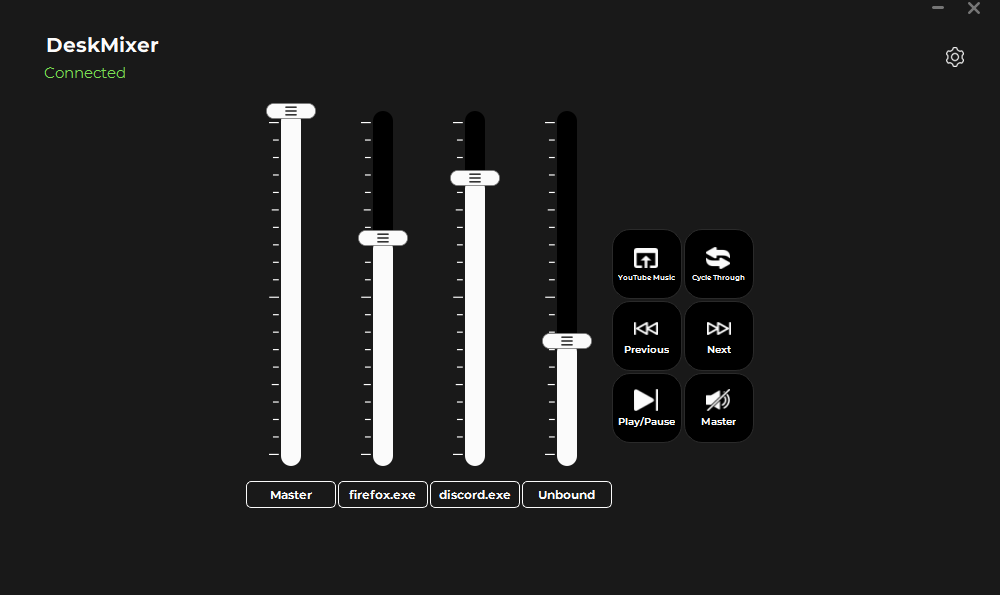
DeskMixer features a sleek, modern interface with a dark theme and smooth animations designed for intuitive hardware control.

DeskMixer UI2 Clean, modern interface with volume sliders and programmable action buttons

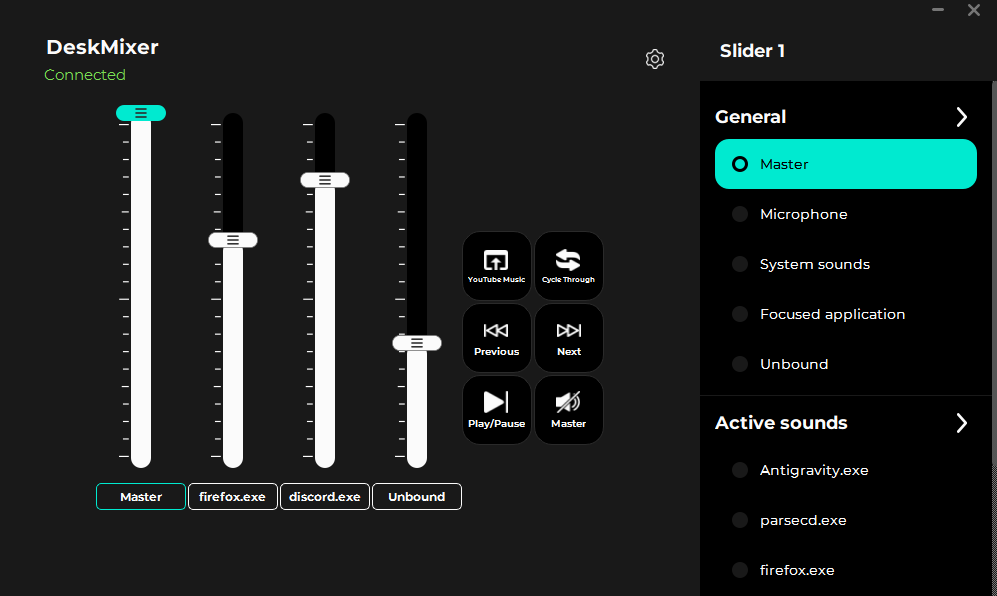
DeskMixer UI2 Sliding configuration menu for easy customization

Interface Features

Visual Design:

  • 🎨 Modern Interface: Premium glassmorphic design with customizable accent colors and animations
  • 🪟 Frameless Window: Custom title bar with drag-to-move functionality
  • 📐 Scalable Layout: Automatically adapts to any number of sliders and buttons
  • ✨ Smooth Animations: Fluid transitions and visual feedback for all interactions

Volume Sliders:

  • 🎛️ Visual Scale Indicators: Each slider displays a scale icon showing the full range
  • 🏷️ Smart Labels: Automatically display bound applications (e.g., "Master + Spotify")
  • 💚 Hardware Sync: Sliders animate smoothly when adjusted via hardware with green highlight feedback
  • 🔄 Drag-and-Drop Reordering: Rearrange sliders to match your preferred layout
  • 🖱️ Click-to-Configure: Click any slider to open its configuration menu

Action Buttons:

  • 🎮 Customizable Grid: Arrange buttons in any grid size (rows × columns)
  • 🔵 Active State Indicators: Blue highlight shows which buttons are configured
  • ⚡ Hardware Feedback: Buttons flash when pressed on the physical device
  • 🔄 Drag-and-Drop: Reorder buttons including empty placeholder positions
  • 📝 Dynamic Labels: Button text adjusts to show the configured action

Configuration Menu:

  • 📱 Sliding Panel: Smooth slide-in menu from the right side
  • 🎯 Context-Sensitive: Different menus for sliders, buttons, and settings
  • 🔍 Live Search: Browse and add applications with file picker integration
  • 📋 Expandable Sections: Organized categories with collapsible headers
  • ✅ Visual Selection: Active bindings highlighted with checkmarks

Settings & Customization:

  • ⚙️ General Settings: Start hidden, Windows startup integration, slider sampling modes
  • 📐 Layout Controls: Configure button grid dimensions (R×C)
  • 🌈 LEDs Configuration: Adjust brightness (0-100%), speed (1-10), fill modes, animation styles (Surf, Solid, Pulse, VU Bar, Starlight), and custom color palettes with dynamically visible options
  • 🖥️ Idle Screen Configuration: Select between default, custom text, or image/GIF modes. Features static image/GIF uploading, automatic resizing, 1-bit dithering, and custom color inverting to prevent blinding OLED glow
  • 🔄 Reorder Modes: Toggle swap modes for buttons or sliders independently
  • 📊 Slider Sampling: Choose between Soft, Normal, or Hard sensitivity modes
  • ℹ️ Version Display: Build version shown at bottom of settings menu

Hardware Integration:

  • 🔌 Real-time Sync: Slider positions update instantly from hardware movements
  • 📺 OLED Screen Sync: Slider volume percentage and button action labels display instantly on the screen upon physical movement
  • 🎞️ Live GIF Streaming: Background thread streams preprocessed GIF frames directly to the OLED display in real-time
  • 🎯 Button Press Feedback: Visual flash in UI and status override on OLED confirm hardware button presses
  • 🔄 Bidirectional Control: Changes sync between hardware and software
  • 🚫 Read-only Sliders: UI sliders display-only to prevent conflicts with hardware control

DIY Hardware Build

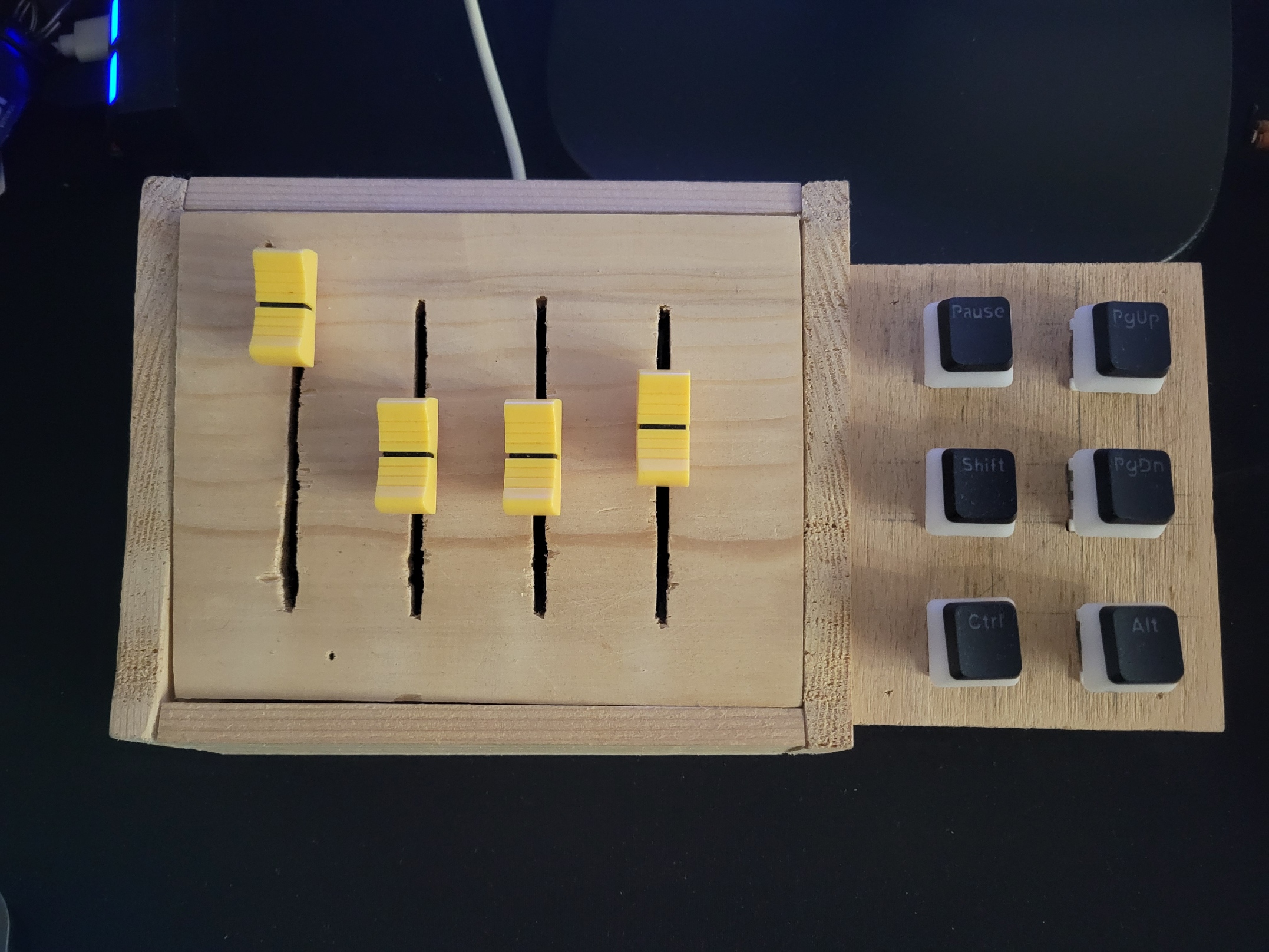
DeskMixer Hardware A functional, handcrafted build - proving that professional results don't require a professional workshop!


✨ Features

DeskMixer takes physical volume control and supercharges it with macro-like button actions.

Volume Control

  • ⚡ Low Latency: Optimized for near-instant response (~10-20ms) with 115200 baud serial communication
  • 🎛️ Physical Sliders: Control individual application volumes with real hardware sliders
  • 📊 Scalable Design: Add as many sliders as you need - the software adapts automatically
  • 🔊 Flexible Targets: Control master volume, microphone, system sounds, or individual apps
  • 🎚️ Adjustable Sensitivity: Choose between Instant, Responsive, Soft, Normal, or Hard sampling modes
  • 💾 Persistent Settings: Your configuration is saved between sessions

Button Actions

  • ⌨️ Custom Keybinds: Map any keyboard shortcut to physical buttons
  • 🎮 Media Controls: Play/pause, next/previous track, seek forward/backward
  • 🔇 Mute Controls: Instant mute/unmute for system, microphone, or specific applications
  • 🔀 Audio Switching: Switch between audio output devices with a button press
  • 🚀 App Launcher: Launch or focus applications instantly

System Integration

  • 🪟 System Tray: Runs minimized with quick access
  • 🔌 Auto-Detection: Automatic serial port detection
  • 🔄 Hot-Reload: Configuration updates in real-time
  • 🎯 Focus Tracking: Optional control of currently active application

📺 OLED Display (SSD1306)

  • 🔄 Dynamic States: Displays "Disconnected", "Connected" message, custom text, or GIF animations depending on the connection state
  • 🎞️ Real-time GIF Streaming: Python host preprocesses GIFs (scales to 128x64, converts to 1-bit monochrome using Floyd-Steinberg dithering for grayscale simulation, and auto-inverts light backgrounds) and streams them live via serial
  • 💾 Autonomous Flash Playback: The board plays pre-flashed GIF animations directly from its onboard SPI NOR Flash (GD25Q64ESIG) when the PC app is offline or disconnected
  • 🎯 Adjust Override: Instantly displays slider targets/percentages (2x size font) and button actions when modified, auto-returning to the idle screen after 2 seconds

🌈 LED Animations (WS2812B/SK6812MINI)

  • ⚡ Non-Blocking DMA: WS2812B protocol encoded at 3.2MHz and driven via SPI2 DMA at a smooth 60 FPS without lagging physical controls
  • 🎛️ 5 Slider Styles:
    • Surf: Rainbow gradient flowing smoothly across all rows
    • Solid: Static colors customizable per slider
    • Pulse: Breathing brightness wave that cycles colors at the lowest points
    • VU Bar: Light up height corresponds directly to the volume of the slider channel
    • Starlight: Random sparkling stars that slowly fade out
  • 🎮 4 Button Styles: Surf, Solid, Pulse, and Starlight
  • 🎨 Color Customization: Configure uniform colors, custom palettes (using "+" and "-" buttons, min 3 colors), or individual slider/button colors
  • 📐 Flexible Fill: None, Full, and Volume-based for sliders; None, On Press, and Always-on for buttons

🎛️ Volume Targets

The software supports multiple volume control modes:

TargetDescriptionUse Case
🔊 MasterSystem master volumeOverall volume control
🎤 MicrophoneDefault microphone inputQuick mic adjustments
🔔 System SoundsWindows notification soundsSilence those pings!
⭐ Current ApplicationCurrently focused appDynamic control of active app
🎵 Individual AppsSpecific applicationsDedicated controls (Spotify, Discord, etc.)
❔ UnboundNo assignmentFlexible unassigned slider
❌ NoneDisabledSlider inactive

Note: The application list updates automatically based on running audio applications. The UI scales to accommodate any number of slider bindings you create!


🎮 Button Actions

Media Controls

  • ⏯️ Play/Pause: Toggle media playback
  • ⏭️ Next Track: Skip to next media track
  • ⏮️ Previous Track: Go to previous media track
  • ⏩ Seek Forward: Jump forward in current media
  • ⏪ Seek Backward: Jump backward in current media

Audio Controls

  • 🔊 Volume Up: Increase system volume
  • 🔉 Volume Down: Decrease system volume
  • 🔇 Mute: Toggle mute for system, microphone, or specific application
  • 🔀 Switch Audio Output: Switch between available audio output devices*

Advanced Actions

  • ⌨️ Custom Keybind: Execute any keyboard shortcut (see KEYBIND_EXAMPLES.md)
  • 🚀 Launch App: Start or focus specific applications

Pro Tip: Combine button actions with specific application targets for powerful workflows. For example:

  • Mute Discord specifically with one button
  • Launch Spotify and set volume to 50% with another
  • Send custom shortcuts to specific apps

The button configuration UI scales dynamically - add as many buttons as your microcontroller has pins!


🔧 Hardware

Required Components

  • Microcontroller: ESP32 or compatible Arduino board
  • Sliders: 4x 10kΩ linear potentiometers (scalable to more)
  • Buttons: 6x push buttons (scalable to more)
  • Connection: PCB or breadboard
  • Cable: USB cable for serial communication

Pin Configurations & Support

DeskMixer supports both Arduino (ESP32) and custom STM32 hardware designs.

Arduino (ESP32) Pin Mapping

You can modify these in the Arduino sketch (firmware/arduino/DeskMixer/DeskMixer.ino) to match your build:

  • Sliders: GPIO 33, 32, 35, 34, 39
  • Buttons: GPIO 12, 13, 14, 26, 27, 25
STM32 (Blue Pill) Configuration

For the custom PCB board, the STM32F103 (Blue Pill) is configured with the following pins:

ComponentPin (Port)Physical PinDescription
Slider 1PA0Pin 10ADC1 Channel 0
Slider 2PA1Pin 11ADC1 Channel 1
Slider 3PA2Pin 12ADC1 Channel 2
Slider 4PA3Pin 13ADC1 Channel 3
Slider 5PA4Pin 14ADC1 Channel 4
Button 1PB1Pin 19GPIO Input (Pull-Up)
Button 2PB2Pin 20GPIO Input (Pull-Up)
Button 3PB3Pin 39GPIO Input (Pull-Up)
Button 4PB4Pin 40GPIO Input (Pull-Up)
Button 5PB10Pin 21GPIO Input (Pull-Up)
Button 6PB11Pin 22GPIO Input (Pull-Up)
WS2812B LEDsPB15Pin 28SPI2 MOSI (DMA Transmit)
OLED SCLPB6Pin 42I2C1 SCL
OLED SDAPB7Pin 43I2C1 SDA
Flash SCKPA5Pin 15SPI1 SCK
Flash MISOPA6Pin 16SPI1 MISO
Flash MOSIPA7Pin 17SPI1 MOSI
Flash CSPB0Pin 18GPIO Output

Expanding Your Build

Want more controls? Simply:

  1. Add more potentiometers/buttons to your hardware.
  2. Update the pin configuration in arduino/DeskMixer/DeskMixer.ino or the STM32 firmware parameters in firmware/stm32/Core/Src/sliders.c / buttons.c.
  3. Upload the modified firmware.
  4. The DeskMixer software will automatically detect and configure the new inputs!

Circuit Explanation

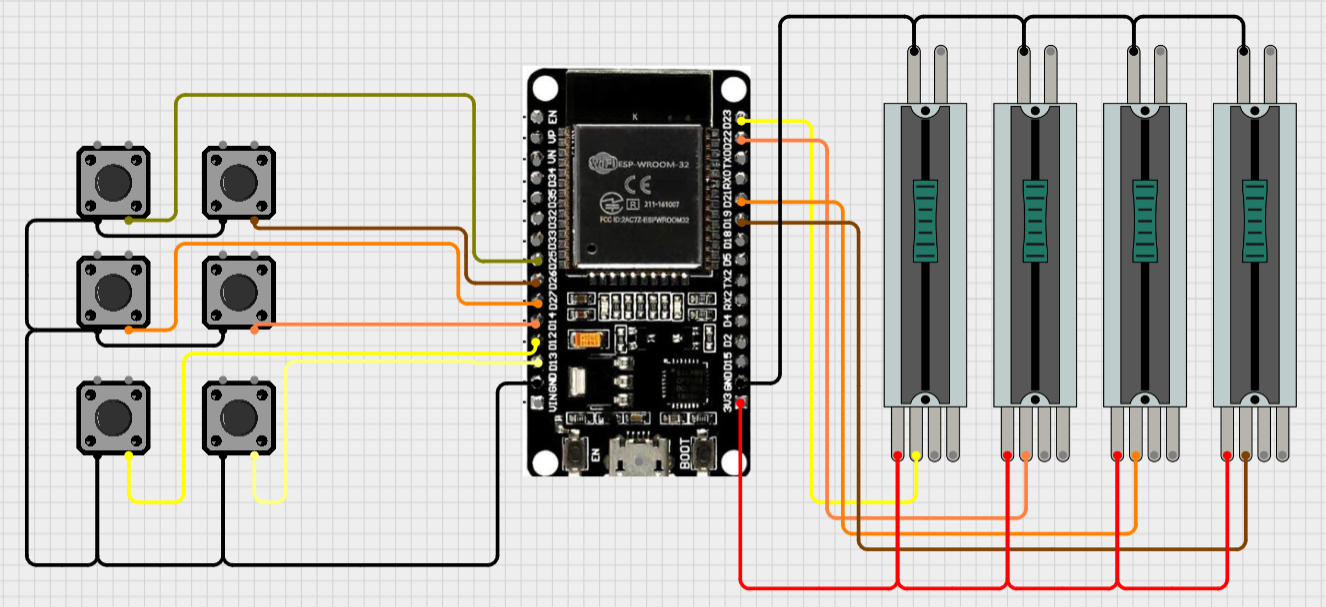
Circuit Diagram Wiring diagram showing connections between ESP32, potentiometers, and buttons

Understanding the Circuit

The DeskMixer circuit consists of three main components working together:

Power Distribution:

  • The ESP32 is powered via USB connection to your computer
  • All components share a common ground (GND) connection
  • The 3.3V pin from the ESP32 powers the potentiometers

Potentiometer Connections (Volume Sliders): Each potentiometer has three pins:

  • Left pin: Connected to GND (ground)
  • Middle pin (wiper): Connected to ESP32 analog input pins (GPIO 33, 32, 35, 34)
  • Right pin: Connected to 3.3V power

As you move the slider, the middle pin voltage varies between 0V and 3.3V, which the ESP32 reads as analog values (0-1024). The software then maps these values to volume levels (0-100%).

Button Connections: Each button uses a simple pull-down configuration:

  • One side: Connected to ESP32 digital input pins (GPIO 27, 25, 14, 26, 12, 13)
  • Other side: Connected to GND (ground)
  • Internal pull-up resistor: Enabled in firmware (button reads HIGH when not pressed, LOW when pressed)

Color Coding in Diagram:

  • Black: Ground connections
  • Red: 3.3V power connections
  • Yellow/Orange/Blue: Signal wires to ESP32 GPIO pins
Important Notes

⚠️ Analog Pin Limitations: On ESP32, not all pins support analog reading. Use only ADC1 pins (GPIO 32-39) for potentiometers. Avoid GPIO 25 and 26 for analog input as they're DAC pins.

⚠️ Voltage Levels: ESP32 GPIO pins are 3.3V tolerant. Never connect 5V directly to any GPIO pin.

💡 Wire Gauge: Use 22-24 AWG wire for connections. Solid core wire works well for breadboard prototyping, while stranded wire is better for the final build.

💡 Debouncing: The firmware includes software debouncing for buttons to prevent false triggers. No additional hardware debouncing (capacitors) is needed.

3D Models & PCB Files

Coming Soon: 3D printable enclosure models and Gerber files for PCB manufacturing will be added in future updates!


📦 Installation

Option 1: Pre-built Executable (Easiest)

  1. Download DeskMixer.exe from the Releases page.
  2. Run the executable

Option 2: Run from Source

Requirements:

  • Python 3.13+
  • Arduino IDE
  • ESP32 board or compatible Arduino

Steps:

  1. Clone the repository:
bash
git clone https://github.com/RaduAndre/DeskMixer.git
cd DeskMixer/src
  1. Install dependencies:
bash
pip install -r requirements.txt
  1. Run the application:
bash
python main.py

Upload Firmware to Arduino (ESP32)

  1. Open arduino/DeskMixer/DeskMixer.ino in Arduino IDE
  2. Select your board (ESP32) and COM port
  3. Upload the sketch
  4. The firmware will automatically communicate with DeskMixer

Upload Firmware to STM32

The STM32 firmware is located in firmware/stm32. You can compile and flash it using your preferred tools:

  1. STM32CubeIDE / Keil:
    • Open the firmware/stm32 directory as an existing STM32 project in STM32CubeIDE.
    • Configure your debug tool (ST-Link V2, J-Link, etc.).
    • Build the project (generates .elf, .bin, or .hex).
    • Click "Run" or "Debug" to flash it to the Blue Pill.
  2. STM32CubeProgrammer:
    • Connect your ST-Link V2 to the SWD pins (GND, 3.3V, SWDIO, SWCLK).
    • Open STM32CubeProgrammer and connect to the device.
    • Select the built .bin or .hex file from firmware/stm32/Debug/deskmixer.bin.
    • Click "Start Programming".

⚙️ Configuration

First-Time Setup

  1. Launch DeskMixer
  2. Connect Hardware: The application will automatically detect your Arduino's serial port
  3. Configure Sliders:
    • Click on any slider to open the configuration menu
    • Select from General options (Master, Microphone, System sounds, Focused application, Unbound)
    • Or choose from Active sounds (currently running applications)
    • Or add custom applications via the search function
    • Multiple applications can be bound to the same slider
  4. Configure Buttons:
    • Click on any button to open the action menu
    • Select from Media Controls (Play/Pause, Next, Previous, etc.)
    • Configure Mute actions with specific targets
    • Set up custom Keybinds or Launch app actions
    • Changes save automatically

Slider Configuration

Binding Options:

  • General Targets: Master volume, Microphone, System sounds, Focused application, Unbound
  • Active Sounds: Dynamically detected running applications with audio
  • Custom Applications: Add any application via name search or file browser
  • Multiple Bindings: Bind multiple applications to a single slider for grouped control
  • Smart Labels: Slider labels automatically update to show all bound applications

Configuration Menu:

  • Click any slider to open its dedicated configuration menu
  • Expandable sections organize options by category
  • Active bindings show checkmarks for easy identification
  • Right-click custom applications to delete them from the list
  • Browse for .exe or .lnk files to add new applications

Button Configuration

Available Actions:

Media Controls:

  • Play/Pause, Previous, Next
  • Volume up/down
  • Seek backward/forward

Advanced Actions:

  • Mute: Choose target (Master, Microphone, System sounds, Focused application)
  • Switch Audio Output: Cycle through devices or select specific output (Speakers, Headphones)
  • Keybind: Enter custom keyboard shortcuts (see KEYBIND_EXAMPLES.md)
  • Launch app: Browse and select applications to launch or focus

Configuration Menu:

  • Click any button to open its action menu
  • Expandable items reveal sub-options (e.g., Mute → Master/Microphone/etc.)
  • Input fields for Keybind and Launch app actions
  • File browser integration for selecting applications
  • Active action highlighted with blue indicator

LED Configuration

Click on Settings (gear icon) in the top-right corner, then look for the LEDs section in the configuration menu:

  • LED Brightness: Move the slider (0-100%) to control overall brightness.
  • Animation Speed: Adjust the speed level (1-10) of active animations.
  • Slider LEDs:
    • Fill Mode: Choose between None (disabled), Full (always-on), or Volume based (VU meter filling according to slider physical value).
    • Style: Choose Surf (color sweep), Solid (static), Pulse (breathing color wave), VU Bar (solid color volume height), or Starlight (sparkles).
    • Color Mode: Choose All (uniform color) or By slider for Solid. Choose Random or Select colors (cycles custom colors) for animations.
    • Custom Colors: Click swatches to pick custom colors. Use + and - to add or remove colors from the custom color palette (minimum of 3 colors).
  • Button LEDs:
    • Fill Mode: Choose None, On press (lights up on click), or Always (always-on).
    • Style: Choose Surf, Solid, Pulse, or Starlight.
    • Color Mode & Colors: Same options and swatch tools as sliders.

Idle Screen Configuration

Click on Settings (gear icon) in the top-right corner, then look for the Idle Screen section in the configuration menu:

  • Text Mode: Enter a custom text string. When the device is idle, it wraps and centers this text on the OLED screen.
  • Image Mode:
    • Click Upload image or GIF to pick a file (.png, .jpg, .jpeg, .bmp, .gif).
    • The software automatically resizes the image to 128x64, converts it to 1-bit monochrome using Floyd-Steinberg dithering to support gray shades, auto-inverts the colors for white-background images (to prevent OLED blinding and frame-by-frame flicker), and saves the file.
    • While idle, the desktop app streams this image or GIF frames in real-time to the screen. If disconnected or offline, the STM32 board plays a pre-flashed GIF autonomously from its SPI NOR Flash (GD25Q64ESIG).
    • Click on any previously uploaded image thumbnail to select it. Hovering over a thumbnail shows the filename as a tooltip.

Layout Customization

Button Grid:

  • Open Settings menu (gear icon)
  • Navigate to Layout → Grid Size
  • Enter desired Rows (R) and Columns (C)
  • Grid automatically validates against available buttons
  • Invalid dimensions flash red with error feedback

Reordering Elements:

  • Open Settings → Layout → Reorder Elements
  • Select "Swap Buttons" or "Swap Sliders" to enter reorder mode
  • Drag and drop elements to rearrange them
  • Supports sparse layouts (buttons can occupy any grid position)
  • Click the reorder option again to exit reorder mode

Settings Menu

Access via the gear icon in the top-right corner:

General:

  • Start Hidden (on tray): Launch minimized to system tray
  • Start on Windows startup: Automatically launch with Windows
  • Slider Sampling: Adjust hardware response sensitivity
    • Instant: Zero-latency mode - no smoothing for immediate response
    • Responsive: Minimal smoothing - very fast with slight stabilization
    • Soft: Light averaging - balanced response (5 samples)
    • Normal: Moderate averaging - smooth control (10 samples)
    • Hard: Heavy averaging - very smooth, slower response (20 samples)

Layout:

  • Grid Size: Configure button grid dimensions
  • Accent Color: Customize the UI with 'Default' (Teal) or any custom color via the picker
  • Reorder Elements: Enable drag-and-drop for buttons or sliders

System Tray

  • Double-click tray icon: Show/hide main window
  • Right-click tray icon: Quick actions menu
  • Window automatically minimizes to tray when closed

🏗️ Building from Source

Create your own executable using either method:

PyInstaller (Faster)

bash
cd src
python build_app.py

Nuitka (More Optimized)

bash
cd src
python build_nuitka.py

Built executables will appear in src/build/dist/


🎨 About the Hardware Build

The device shown in the gallery was handcrafted with basic tools and materials - no fancy workshop required! It's a testament that functional, effective hardware doesn't need to be professionally manufactured. The beauty of this project is in its functionality and the satisfaction of building something yourself.

DIY Philosophy: This project embraces the maker spirit - it's about creating tools that work for YOU, not winning beauty contests. If it controls your volume and makes your workflow better, it's perfect.


🛠️ Customization & Scalability

DeskMixer is designed to grow with your needs:

Hardware Scaling

  • Start small: 2 sliders and 2 buttons
  • Go big: 16+ sliders and 20+ buttons
  • Mix it up: Combine sliders, buttons, rotary encoders, or other inputs

The software automatically adapts to whatever hardware configuration you define in the Arduino firmware!

Software Flexibility

  • Configure targets per-slider/button
  • Create complex automation chains
  • Save multiple profiles (future feature)

📝 Keybind Examples

For comprehensive keybind examples and syntax, see KEYBIND_EXAMPLES.md


🤝 Contributing

Contributions are welcome! Whether it's:

  • 🐛 Bug reports
  • 💡 Feature suggestions
  • 📝 Documentation improvements
  • 🔧 Code contributions
  • 📸 Sharing your build

Feel free to open an issue or submit a pull request!


📄 License

This project is open source. Check the LICENSE file for details.


🙏 Acknowledgments

  • Inspired by Deej by Omri Harel
  • Built with passion for makers and tinkerers everywhere
  • Special thanks to everyone who builds DIY hardware and shares their projects!

📞 Support


Made with 🎛️ by makers, for makers

Star ⭐ this repo if you find it useful! You can also support further development buying me a Coffe ☕.

Parts

113
QtyValueFootprintReferences
46SK6812MINILCSC_Library:LED-SMD_4P-L3.7-W3.5-P1.75-BR-SK6812MINILED1, LED2, LED10, LED11, LED12, LED13, LED14, LED15, LED16, LED17, LED18, LED19, LED20, LED21, LED22, LED23 +30
13100nLCSC_Library:C0603C1, C2, C3, C4, C6, C9, C14, C15, C16, C17, C18, C19, C21
6CPG151101S11-2_C49352235LCSC_Library:TH_L10.9-W5.9-CPG151101S11-2Kal1, Kal2, Kal3, Kal4, Kal5, Kal6
5~sliding_potentiometer_b103:b103S1, S2, S3, S4, S5
21.5kLCSC_Library:R0805R4, R5
210pLCSC_Library:C0603C10, C11
21uFLCSC_Library:C0603C7, C8
222uLCSC_Library:C0805C12, C13
25.1kLCSC_Library:R0603R1, R2
2SM04B-SRSS-TB (LF)(SN)LCSC_Library:CONN-SMD_4P-P1.00_SM04B-SRSS-TB-LF-SNCN1, CN2
110kLCSC_Library:R0603R3
110uLCSC_Library:C0603C5
12.54-1*4LCSC_Library:HDR-TH_4P-P2.54-V-M-1U2
1AMS1117-3.3LCSC_Library:SOT-223-3_L6.5-W3.4-P2.30-LS7.0-BRU3
1BXJ 10V1000uFLCSC_Library:CAP-SMD_BD10.0-L10.3-W10.3-FDC20
1FerritebeadLCSC_Library:L0603L1
1GD25Q64ESIGLCSC_Library:SOP-8_L5.3-W5.3-P1.27-LS8.0-BLU4
1MST-12D18G4 SPDT SLIDE SWITCHLCSC_Library:SW-SMD_MST-12D18G4-SPDT-SLIDE-SWITCHSW1
1Red ledLCSC_Library:LED0805-R-RD_REDLED47
1SN74AHCT125DRLCSC_Library:SOIC-14_L8.7-W3.9-P1.27-LS6.0-BLU5
1SS14LCSC_Library:SMA_L4.2-W2.6-LS5.0-RD_1D2
1STM32F103C8T6LCSC_Library:LQFP-48_L7.0-W7.0-P0.50-LS9.0-BLU1
1USB_C_Receptacle_HRO_TYPE-C-31-M-12Connector_USB:USB_C_Receptacle_HRO_TYPE-C-31-M-12USB
1X322516MMB4SILCSC_Library:CRYSTAL-SMD_4P-L3.2-W2.5-BLX1
1~sliding_potentiometer_b103:screenD1

The 97 most common of 113 parts.

Questions

How big is the DeskMixer PCB?

It measures 154.7 × 113 mm and has 2 copper layers, 1.6 mm thick.

What parts does the DeskMixer use?

113 parts, built around the STM32F103C8T6, GD25Q64ESIG, AMS1117-3.3 and SK6812MINI-E. The full list of its parts is on this page, with links to each part's symbol and footprint where PCBKit's library has them.

Where can I download the DeskMixer KiCad files?

From the RaduAndre/DeskMixer repository on GitHub, at the commit this page was made from: the board is gerber/desk_mixer/desk_mixer.kicad_pcb and its schematic gerber/desk_mixer/desk_mixer.kicad_sch. PCBKit opens the board in the browser, with nothing to install.

Can I use the DeskMixer design in my own project?

Its repository states no licence, so its author keeps all rights: ask RaduAndre before reusing the design.

Similar boards

  • 4 layers69.5 × 62.6 mmPower Module, the printed circuit board in 3D

    Power Module

    Queens-Rocket-Engineering-Team/Avionics-23-26

    QRET Avionics hardware, firmware, and documentation for 2023 to 2025.

    131 parts4
  • 4 layers53.7 × 53.7 mmRocketPower, the printed circuit board in 3D

    RocketPower

    Sanassah/RocketPower

    Active fin control flight computer for a model rocket, built from scratch: custom PCB, Cortex-M7 firmware, PD attitude control, and hardware-in-the-loop testing.

    133 parts6MIT
  • 4 layers69.5 × 60 mmHydra, the printed circuit board in 3D

    Hydra

    Queens-Rocket-Engineering-Team/av-hardware

    ECAD for SRAD Avionics hardware

    151 parts1
  • 4 layers69.5 × 62.6 mmPower Module, the printed circuit board in 3D

    Power Module

    Queens-Rocket-Engineering-Team/av-power

    QRET Avionics PCBs and firmware for delivering power to SRAD PCBs

    136 parts1
  • 4 layers42 × 65 mmIcarus Flight Computer, the printed circuit board in 3D

    Icarus Flight Computer

    daedalus-ind/icarus-hardware

    Hardware of the onboard flight computer for the Icarus rocket.

    106 parts2MIT
  • 2 layers37 × 37 mmF7FC, the printed circuit board in 3D

    F7FC

    Momozavur/F7FC-V0.1

    Open the appropriate .kicadpro file in KiCad; .pro entries are legacy projects. Keep schematics, boards, local libraries, library tables, and supporting files together.

    69 parts
  • 2 layers71.3 × 25.4 mmUSB DALI, the printed circuit board in 3D

    USB DALI

    even-notodd/USB-DALI

    USB-DALI interface converter

    43 parts4
  • 2 layers54.5 × 31.2 mmHzbugger, the printed circuit board in 3D

    Hzbugger

    llatva/hzbugger

    Hzbugger, a Black Magic Probe compatible SWD/debugger tool

    62 partsCERN-OHL-S-2.0