2 layers59.2 × 52.9 mm

 RafalBuchner/worldpad3
this is macropad created for blast team
Blastpad is an open-source printed circuit board by RafalBuchner, from the RafalBuchner/worldpad repository on GitHub. It is a 2-layer board of 191.7 × 108.5 mm with 57 parts on 59 nets, routed with 414 tracks and 0 vias.
Its parts include 23 diodes and 23 switches. It belongs with the keyboards and input boards and the RP2040 boards of this library.
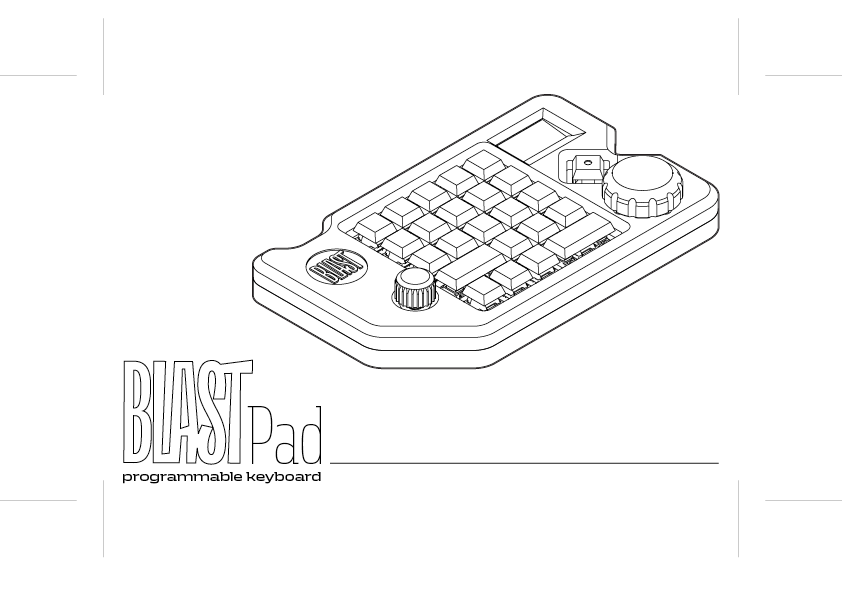
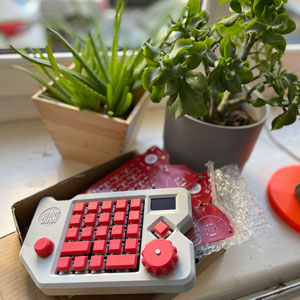
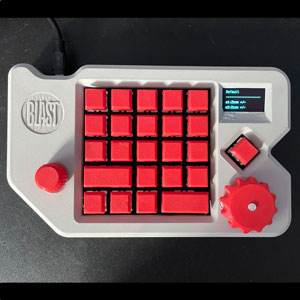
WORLDPad is a macropad – a programmable keyboard with 23 customazible keys and 2 encoders (knobs).
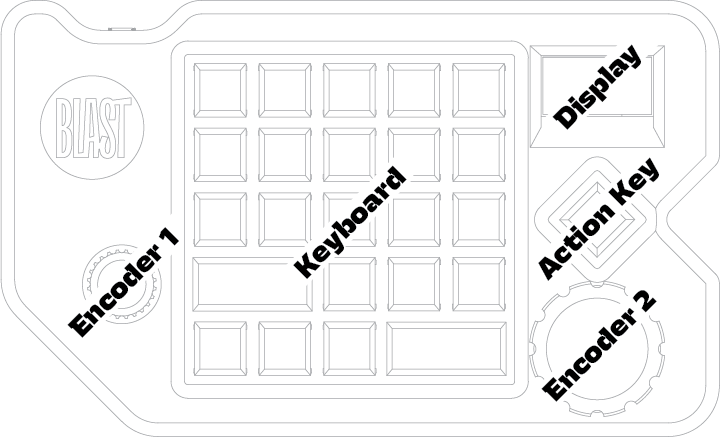
Keyborad's layout was designed to resamble the most left 5 columns of a standard keyborad with the exclusion of the top row (which usually contains all the F keys together with ESC key ). All of the keys are programmable, which means that with the help of a small desktop app you will be able to change behaviour of each key by assigning keystroke combinations to all of them. Additionally WORLDPad has two rotary encoders, which also can trigger some keystroke actions.
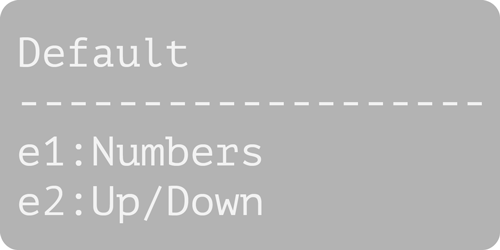
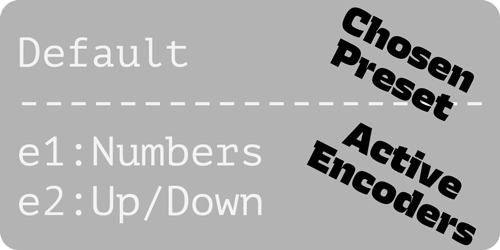
In next the chapter we will talk more about Presets and how to set them up together with the Key and Encoder Actions. For now let's focus on the behaviour of the latter.
Push the knob like it were a button.
You can see on the display that encoder changed it's title and therefore it changed its behaviour. Each Preset has its own set of "behaviours" that can be assigned to eighter Encoder 1 or Encoder 2 (see chapter Creating and editing Presets to learn how to create those behaviours).
There are two types of Encoder Actions:
"Left/Right" Encoder Action
In this action you have assigned two keystrokes to the encoder: one to the counterclockwise and the other one to the cockwise movements.
Good example is the "Up/Down" action. Left movement performs "UP ARROW" keystroke, while right movement performs "DOWN ARROW" keystroke. Test it, for example, in some text editor. You will see that the cursor behaves in a similar way, as you would hit the arrow buttons.
"Carousel" Encoder Action
"Numbers" is a good example of a carousel action. In this action when you rotate knob clockwise, it will execute numerical keystroke. With every step the keystroke will represent incremented digit starting from 0 (zero) until it will reach the 9. After this, the counting will reset to 0.
If you'll rotate know counterclockwise, the operation will work almost the same. Except, this time instead of incrementing, it will decrement digits.
Preset is a singular set of instructions, which determines what keystroke sequence will be triggered by your keys or encoders. You can store almost as many presets on your WorldPad as you want.
Each Preset has actions assigned to the keys, which max number in the preset is equal to the number of the buttons in WORLDPad's keyboard layout (23 – excluding the special lonely key on the right side of the device). Besides Key Actions, each preset can have Encoder Actions. Number of those is in theory limitless. You can switch between all of Preset's Encoder Actions with just two physical encoders.
(Currently alpha pre-release version.)
Download the zip file from this site:
https://github.com/RafalBuchner/worldpad/releases/download/v0.0.0.1-alpha/WorldPadControl.macOS.zip
Or go to the main GitHub page of this project (https://github.com/RafalBuchner/worldpad) and look for the link in the download section of the documentation.
Inside the unzipped folder you will find WorldPadControl executable file. Double click on it. The window like one below should appear:
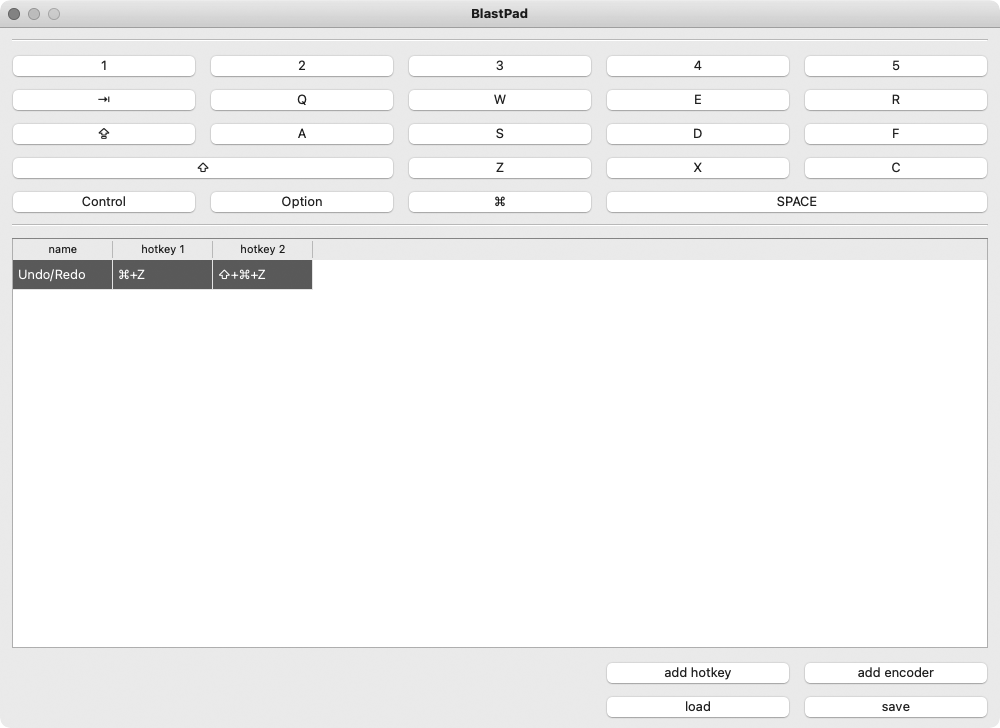
This is the Preset Editor. It is divided into two sections. One is responsible for controling the Key Actions. The other one for creating and editing the Encoder Actions.
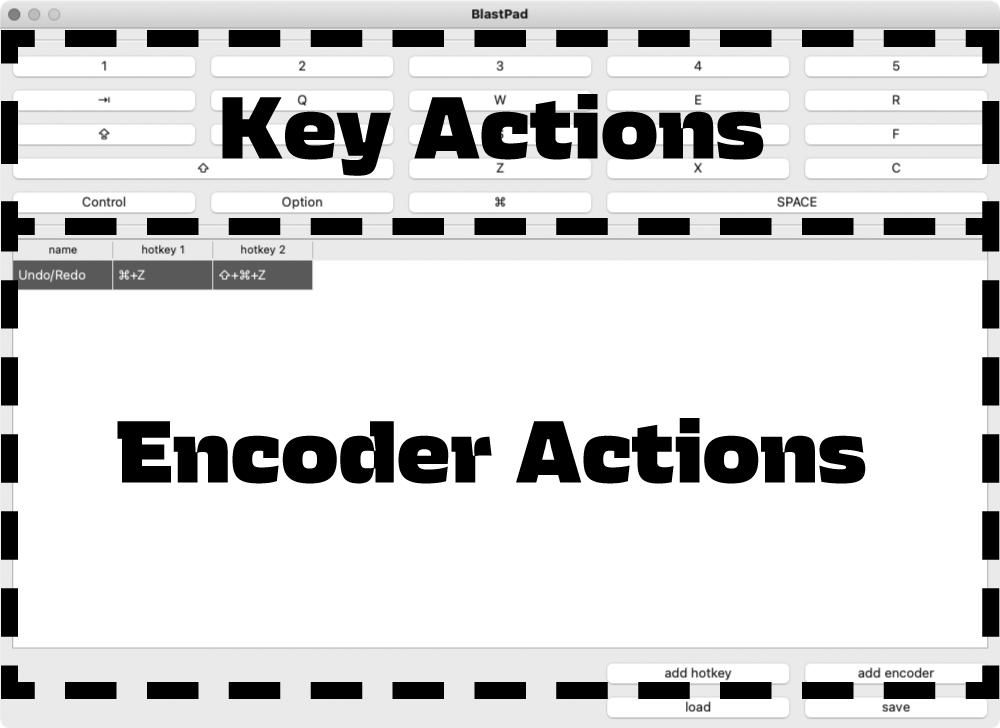
The Key Actions Section's buttons recreates the WorldPad's keyboard layout. If you click on the one of the buttons, the popup window will appear.
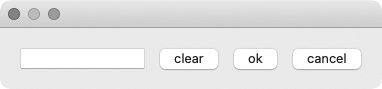
In this window you can assign pressed keystroke sequence to the previously selected button on the Key Action Section.
Simply press some keystroke sequence on your everyday-regular-keyboard and press "ok" button (IMPORTANT: Pacience, This keystroke won't be triggered by the corresponding key on the WORLDPad device yet – we will talk about saving presets onto the device soon).
This way you can edit all of the buttons on the Key Action Section layout. It is super easy.
Encoder Actions Section is a list, where each row represent different Encoder Actions. Each column cell (except the one reserved for the name) defines Keystroke/Hotkey.
To create a new Encoder Action hit "add encoder" button. It will create a new row.
Double click on the cell with the title "new encoder" to set the Encoder Action's name that will appear on the WORLDPad's display.
Click on one of the hotkey cells to assign keystroke sequence.
To create a "Left/Right" Encoder Action you have to assign 2 hotkeys to the encoder. One in the column "hotkey 1" and the otherone in the column "hotkey 2".
The first one will be triggered when you rotate physical encoder counterclockwise. The second, whenever you rotate the same encoder in clockwise direction.
To create a "Carousel" Encoder Action you have to assign any number of hotkeys, except 2.
If you want to have additional hotkey slots created, hit "add hotkey" button. You can add as many as you want.
You save Presets as separate files with *.json extension.
Press Save button to create a Preset file. In order to save preset on your WORLDPad find the usb device with the same name and save the Preset into "Configs" folder. The name of the file will be used as a Preset Title on the WorldPad's display, so name it accordingly to your needs.
If you have more than one Presets you will be able to swich between the presets whenever you like!
It is super easy. Hold Action Key (the lonley key on the right side of the device). You will enter the Preset Selection menu. Now, rotate your Encoder 1 while holding the key. This way you will switch between the Presets.
(It is currently under construction. Beta version is coming very soon.)
Firmware supports CircuitPython 10.1.4 for PICO rp2024.
This repository uses uv package manager. Install nescessary dependencies using uv sync, then run uv run pyinstaller --windowed ${PWD}/software/WorldPad.py --icon ${PWD}/software/WorldPad.icns. It will create a an app in /Users/rafalbuchner/repos/worldpad/dist directory.
To restart tour behaviour: Place localStorage.removeItem("worldpad-tour-seen") in the browser's console.
To restart states: Place localStorage.removeItem("worldpad-state") in the browser's console.
| Qty | Value | Footprint | References |
|---|---|---|---|
| 23 | D | user_footprints:DIODE | D0:0, D0:1, D0:2, D0:4, D1:1, D1:2, D1:3, D1:4, D2:0, D2:1, D2:2, D2:3, D2:4, D3:0, D3:1, D3:2 +7 |
| 6 | MountingHole_3.2mm_M3 | MountingHole:MountingHole_3.2mm_M3 | M3, M3, M3, M3, M3, M3 |
| 2 | Rotary_Encoder_Switch | Rotary_Encoder:RotaryEncoder_Alps_EC12E-Switch_Vertical_H20mm | EN1, EN2 |
| 1 | 1 | footprints:CHERRY_PCB_100H | SW4:1 |
| 1 | 2 | footprints:CHERRY_PCB_100H | SW4:2 |
| 1 | 3 | footprints:CHERRY_PCB_100H | SW4:3 |
| 1 | 4 | footprints:CHERRY_PCB_100H | SW4:4 |
| 1 | A | footprints:CHERRY_PCB_100H | SW2:1 |
| 1 | ALT | footprints:CHERRY_PCB_100H | SW0:2 |
| 1 | C | footprints:CHERRY_PCB_100H | SW1:4 |
| 1 | CAPS | footprints:CHERRY_PCB_100H | SW2:0 |
| 1 | CTRL | footprints:CHERRY_PCB_100H | SW0:0 |
| 1 | D | footprints:CHERRY_PCB_100H | SW2:3 |
| 1 | E | footprints:CHERRY_PCB_100H | SW3:3 |
| 1 | F | footprints:CHERRY_PCB_100H | SW2:4 |
| 1 | Pico | MCU_RaspberryPi_and_Boards:RPi_Pico_SMD_TH | MCU1 |
| 1 | Q | footprints:CHERRY_PCB_100H | SW3:1 |
| 1 | R | footprints:CHERRY_PCB_100H | SW3:4 |
| 1 | S | footprints:CHERRY_PCB_100H | SW2:2 |
| 1 | SHIFT | footprints:CHERRY_PCB_200H | SW1:1 |
| 1 | SPACE | footprints:CHERRY_PCB_200H | SW0:4 |
| 1 | SUPER | footprints:CHERRY_PCB_100H | SW0:1 |
| 1 | TAB | footprints:CHERRY_PCB_100H | SW3:0 |
| 1 | TILDE | footprints:CHERRY_PCB_100H | SW4:0 |
| 1 | W | footprints:CHERRY_PCB_100H | SW3:2 |
| 1 | X | footprints:CHERRY_PCB_100H | SW1:3 |
| 1 | Z | footprints:CHERRY_PCB_100H | SW1:2 |
| 1 | sh1106 | user_footprints:4pin oled display 1,3 | DISPLAY1 |
| 1 | wheel switch | footprints:CHERRY_PCB_100H | SW:WHEEL1 |
It measures 191.7 × 108.5 mm and has 2 copper layers, 1.6 mm thick.
57 parts. The full list of its parts is on this page, with links to each part's symbol and footprint where PCBKit's library has them.
From the RafalBuchner/worldpad repository on GitHub, at the commit this page was made from: the board is hardware/KiCAD-Keyboard-Tutorial-master/blastpad.kicad_pcb. PCBKit opens the board in the browser, with nothing to install.
Its repository states no licence, so its author keeps all rights: ask RafalBuchner before reusing the design.


tapioki/cephalopoda
Low profile split ergonomic mechanical keyboards

rgoulter/keyboard-labs
Repo with my PCB designs and keyboard firmware

freeDSP/freeDSP-aurora
freeDSP ADAU1452 with 8 analog input, 8 analog outputs, S/P-DIF I/O, ADAT I/O, USB Audio Class2, WiFi, Bluetooth
