Skip to the content
2 layers202.5 × 71.5 mmMusic player, the printed circuit board in 3D

A Raspberry Pi Zero 2W-based music player with a retro aesthetic. Features a touch display showing the current track, animated landscape scenes, and a clock — all controllable via a web UI from any device on your…

Size
202.5 × 71.5 mm
Copper layers
2
Thickness
1.6 mm
Parts
20
Nets
33
Pads
81
Tracks, vias
122, 40
Pours
1
Routed
Yes
KiCad
KiCad 9.0 (file 20241229)
Created
5 Apr 2026
Updated
22 Apr 2026

Overview

Music player is an open-source printed circuit board by vermiscore, from the vermiscore/retro-music-player repository on GitHub. It is a 2-layer board of 202.5 × 71.5 mm with 20 parts on 33 nets, routed with 122 tracks and 40 vias.

Its parts include 1 connector and 1 switch.

README

README.md

🎵 Retro Music Player

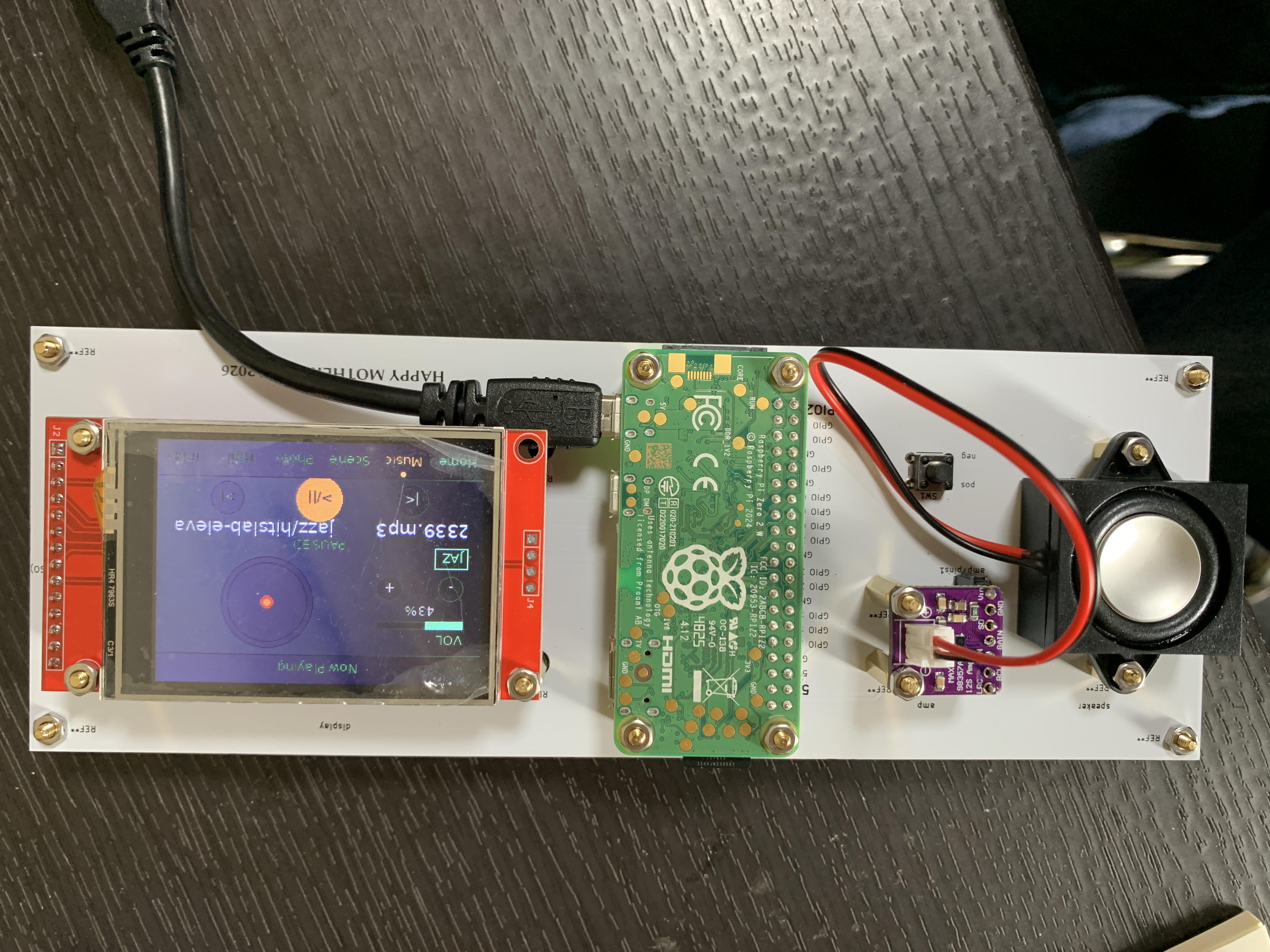
A Raspberry Pi Zero 2W-based music player with a retro aesthetic. Features a touch display showing the current track, animated landscape scenes, and a clock — all controllable via a web UI from any device on your network.

Built as a Mother's Day gift 💐


Photo of assembled device

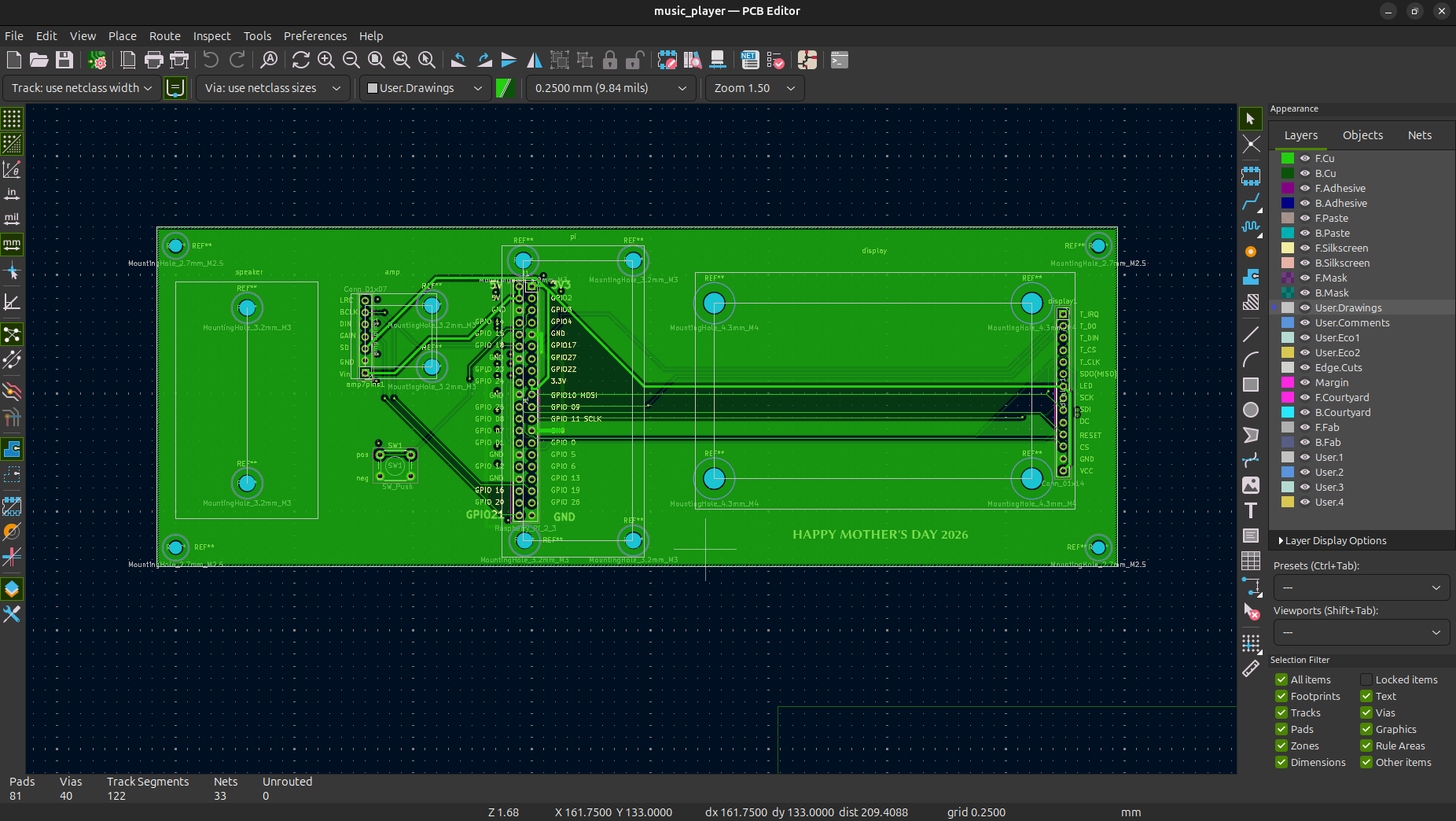
PCB Layout


✨ Features

FeatureStatus
OS setup & SSH access✅
MPD music playback✅
ILI9341 SPI touch display✅
Auto-start on boot✅
Tailscale remote access✅
Web UI (Flask)✅
Touch panel controls✅
Multi-screen UI (Home / Music / Clock / Photo / Mail / Scene)✅
Landscape animation (auto-launch during playback)✅
Photo gallery & slideshow✅
Message feature (Web UI → display)✅
Sky color changes by time of day✅
AirPlay (shairport-sync)✅
MAX98357A amp wiring & audio output✅
C++ effects processing❌

🛠 Hardware

ComponentDetails
Raspberry Pi Zero 2WHMain board
MAX98357AI2S amplifier
ILI9341 2.4" displaySPI touch display (XPT2046 controller)
Speaker3W / 4Ω, JST-PH 2mm connector
microSD 32GBStorage
Tactile switchPower on/shutdown button

🔌 Wiring

ILI9341 Display + Touch (XPT2046)

LCD PinPi GPIOPhysical PinNotes
VCC3.3VPin 1
GNDGNDPin 6
CSGPIO8 (CE0)Pin 24Display CS
RESETGPIO25Pin 22
DCGPIO24Pin 18
SDI (MOSI)GPIO10Pin 19
SCKGPIO11Pin 23
LED3.3VPin 17
SDO (MISO)not connected—
T_DOGPIO9Pin 21Touch MISO
T_CSGPIO7 (CE1)Pin 26Touch CS
T_IRQGPIO17Pin 11Touch interrupt
T_CLKGPIO11 (shared)Pin 23Shared with SCK
T_DINGPIO10 (shared)Pin 19Shared with MOSI

⚠️ T_CLK and T_DIN are branched from Pin 23 and Pin 19 respectively.

MAX98357A Amplifier

Amp PinPi GPIOPhysical Pin
VDD5VPin 2
GNDGNDPin 6
BCLKGPIO18Pin 12
LRCGPIO19Pin 35
DINGPIO21Pin 40
SD3.3V—

Tactile Switch (Power Button)

text
Tactile switch
├── Terminal 1 → GPIO3 (Pin 5)
└── Terminal 2 → GND  (Pin 6)

Button behavior:

  • Short press (device off) → Boot
  • Long press (≥ 0.5s, device on) → Shutdown

💻 Software & File Structure

text
/home/pi/
├── main.py              ← Main loop (touch & display control)
├── touch.py             ← XPT2046 touch reader
├── app.py               ← Flask Web UI server
├── display.py
├── templates/
│   └── index.html       ← Web UI HTML
├── scenes/
│   ├── common.py        ← Shared colors, fonts, nav
│   ├── home.py          ← Home screen
│   ├── music.py         ← Music screen (playback controls)
│   ├── clock.py         ← Clock screen
│   ├── mail.py          ← Mail screen (message display)
│   ├── photo.py         ← Photo gallery & slideshow
│   ├── scene_select.py  ← Landscape selection screen
│   ├── landscape.py     ← Landscape animation
│   ├── rain.py
│   └── dance.py
├── music/               ← Music files (.mp3)
├── photos/              ← Photo files
└── messages.json        ← Message history

⚙️ OS & Setup

  • OS: Raspberry Pi OS Bookworm Lite 64-bit (2024-11-19)
    • ⚠️ Avoid the latest Trixie (2025-12-04) — a bug in Imager prevents SSH/Wi-Fi settings from being applied correctly.
  • Default user: pi

📦 Dependencies

bash
sudo apt install python3-pip python3-dev python3-pil fonts-dejavu mpd mpc -y
pip3 install luma.lcd flask python-mpd2 spidev numpy --break-system-packages

🔧 Auto-Start (systemd)

Display service (main.py)

ini
# /etc/systemd/system/display.service
[Unit]
Description=Display Service
After=network.target

[Service]
ExecStart=/usr/bin/python3 /home/pi/main.py
WorkingDirectory=/home/pi
Restart=always
User=pi

[Install]
WantedBy=multi-user.target

Flask Web UI service

ini
# /etc/systemd/system/flask.service
[Unit]
Description=Flask Web UI
After=network.target

[Service]
ExecStart=/usr/bin/python3 /home/pi/app.py
WorkingDirectory=/home/pi
Restart=always
User=pi

[Install]
WantedBy=multi-user.target

Enable both services

bash
sudo systemctl enable display flask
sudo systemctl start display flask

🌐 Web UI

Access the Web UI from any browser on the same network:

text
http://<raspberry-pi-ip>:5000

Features: Music playback control, file management, photo upload, message sending, system controls.

Tip: If the port is busy, run:

bash
sudo kill $(sudo fuser 5000/tcp 2>/dev/null)
sudo systemctl start flask

Or add this alias to ~/.bashrc for convenience:

bash
alias fixflask='sudo kill $(sudo fuser 5000/tcp 2>/dev/null); sudo systemctl start flask'

🎵 MPD Configuration

/etc/mpd.conf changes

text
music_directory "/home/pi/music"
bind_to_address "any"

audio_output {
    type        "alsa"
    name        "I2S Audio"
    device      "dmixer"
    mixer_type  "software"
}

Permissions

bash
chmod 755 /home/pi
sudo chown -R mpd:audio /home/pi/music

Basic playback commands

bash
mpc ls | mpc add   # Add all tracks
mpc play           # Play
mpc next           # Next track
mpc current        # Show current track
mpc stop           # Stop

➕ Adding Music

Via SCP (recommended):

bash
scp ~/Downloads/song.mp3 pi@<raspberry-pi-ip>:/home/pi/music/

Via Web UI:

  1. Web UI → Files tab → Upload files
  2. Player tab → click "Scan Library"

Either way, press Scan Library after adding files.


🔊 MAX98357A Troubleshooting

Problem: No audio output

Symptom: Device appears in aplay -l but no sound.

Root cause: GPIO18 (BCLK) is not set to PCM_CLK by the overlay automatically.

Diagnosis:

bash
pinctrl get 18,19,20,21
# GPIO18 should show PCM_CLK — if it shows "output", this is the bug

Fix:

  1. Edit /boot/firmware/config.txt:
text
dtparam=i2s=on
# dtparam=audio=on   ← comment this out (conflicts with I2S)
dtoverlay=max98357a,no-sdmode
  1. Create a systemd service to force GPIO18 to PCM_CLK on boot:
ini
# /etc/systemd/system/i2s-fix.service
[Unit]
Description=Fix GPIO18 for I2S
After=multi-user.target

[Service]
Type=oneshot
ExecStartPre=/bin/sleep 3
ExecStart=/usr/bin/pinctrl set 18 a0
RemainAfterExit=yes

[Install]
WantedBy=multi-user.target
bash
sudo systemctl enable i2s-fix
sudo systemctl start i2s-fix

Note: If the display service reconfigures GPIO18 as output, restart both services:

bash
sudo systemctl restart display && sudo systemctl restart i2s-fix

Problem: Buzzing / popping noise

Root cause: MAX98357A pops/buzzes when the I2S clock starts or stops.

Fix: Use ALSA dmix and continuously play silence to keep the I2S clock alive.

1. Create /etc/asound.conf:

text
pcm.dmixer {
    type dmix
    ipc_key 1024
    ipc_perm 0666
    slave {
        pcm "hw:0,0"
        rate 48000
        channels 2
    }
}
pcm.!default {
    type plug
    slave.pcm "dmixer"
}

2. Create /etc/systemd/system/aplay-silence.service:

ini
[Unit]
Description=Play silence to keep I2S clock alive
After=sound.target

[Service]
ExecStart=/usr/bin/aplay -D dmixer -t raw -r 48000 -c 2 -f S16_LE /dev/zero
Restart=always

[Install]
WantedBy=multi-user.target
bash
sudo systemctl enable aplay-silence
sudo systemctl daemon-reload
sudo reboot

📻 AirPlay Setup

bash
sudo apt install shairport-sync -y

That's it — shairport-sync auto-starts on boot.

Usage:

  1. Open Control Center on iPhone
  2. Tap the AirPlay icon
  3. Select raspberrypi
  4. Play music from any app (Apple Music, Spotify, YouTube, etc.)

🖐 Touch Calibration

python
X_MIN, X_MAX = 251, 3735
Y_MIN, Y_MAX = 220, 3842

Coordinate transform in touch.py (X/Y swap + X invert):

python
x = SCREEN_W - int((y_raw - Y_MIN) / (Y_MAX - Y_MIN) * SCREEN_W)
y = int((x_raw - X_MIN) / (X_MAX - X_MIN) * SCREEN_H)

🗒 Known Issues

  • Buzzing/popping noise is mitigated by the aplay-silence workaround above.
  • If the Web UI port 5000 is occupied by another process (e.g. shairport-sync), change the Flask port to 5001.
  • systemd-networkd-wait-online.service can block boot for 2+ minutes — disable it if startup is slow:
    bash
    sudo systemctl disable systemd-networkd-wait-online.service

📐 PCB

Designed in KiCad. Files are in the hardware/ directory.

  • music_player.kicad_pcb — PCB layout
  • music_player.kicad_sch — Schematic
  • gerber/ — Gerber files for PCB fabrication (e.g. JLCPCB)

📄 License

MIT License

Parts

20
QtyValueFootprintReferences
1Conn_01x07Connector_PinHeader_2.54mm:PinHeader_1x07_P2.54mm_Verticalamp7pins1
1Conn_01x14Connector_PinSocket_2.54mm:PinSocket_1x14_P2.54mm_Verticaldisplay1
1Raspberry_Pi_2_3Connector_PinSocket_2.54mm:PinSocket_2x20_P2.54mm_VerticalJ1
1SW_PushButton_Switch_THT:SW_PUSH_6mmSW1

The 4 most common of 20 parts.

Similar boards

  • 2 layers66.9 × 74.5 mmDeskHop Rev1, the printed circuit board in 3D

    DeskHop Rev1

    hrvach/deskhop

    Fast Desktop Switching Device

    20 parts7.9kGPL-3.0
  • 2 layers86.4 × 64.8 mmSlot machine, the printed circuit board in 3D

    Slot machine

    google/google-ctf

    Google CTF

    20 parts5.1kApache-2.0
  • 2 layers36.2 × 26.8 mmEsp32 minimal, the printed circuit board in 3D

    Esp32 minimal

    atopile/atopile

    Design circuit boards with code! ✨ Get software-like design reuse 🚀, validation, version control and collaboration in hardware; starting with electronics ⚡️

    20 parts4kMIT
  • 2 layers108.1 × 393.8 mmSweep compact ble, the printed circuit board in 3D

    Sweep compact ble

    davidphilipbarr/Sweep

    Sweep - a small promicro based keyboard inspired by the Ferris.

    20 parts2.1k
  • 2 layers26 × 15.9 mmTPS54340 Buck Regulator, the printed circuit board in 3D

    TPS54340 Buck Regulator

    rusefi/rusefi

    rusefi - GPL internal combustion engine control unit

    20 parts1.2k
  • 2 layers67.6 × 30.5 mmRgb to hdmi, the printed circuit board in 3D

    Rgb to hdmi

    hoglet67/RGBtoHDMI

    Bare-metal Raspberry Pi project that provides pixel-perfect sampling of Retro Computer RGB/YUV video and conversion to HDMI

    20 parts1kGPL-3.0
  • 2 layers44.3 × 28.7 mmLin bus adapter esp32, the printed circuit board in 3D

    Lin bus adapter esp32

    hackclub/OnBoard

    💡 Join 1,000 teenagers and make your first PCB with a $100 grant!

    20 parts915
  • 2 layers89.5 × 61.6 mmFreeDeck TH 2020-02, the printed circuit board in 3D

    FreeDeck TH 2020-02

    FreeYourStream/freedeck-hardware

    all the stuff you need to build your own FreeDeck

    20 parts772

Questions

How big is the Music player PCB?

It measures 202.5 × 71.5 mm and has 2 copper layers, 1.6 mm thick.

What parts does the Music player use?

20 parts. The full list of its parts is on this page, with links to each part's symbol and footprint where PCBKit's library has them.

Where can I download the Music player KiCad files?

From the vermiscore/retro-music-player repository on GitHub, at the commit this page was made from: the board is hardware/music_player.kicad_pcb and its schematic hardware/music_player.kicad_sch. PCBKit opens the board in the browser, with nothing to install.

Can I use the Music player design in my own project?

Its repository states no licence, so its author keeps all rights: ask vermiscore before reusing the design.