
2 layers73 × 13 mm

KiCad automation utility
Lcd is an open-source printed circuit board by apcountryman, from the apcountryman/KiBot repository on GitHub, published under the AGPL-3.0 licence. It is a 2-layer board of 97.6 × 48.3 mm with 2 parts on 28 nets.
It belongs with the lEDs and displays boards of this library.



Important for CI/CD:
New on v1.6.1
KiBot is a program which helps you to generate the fabrication and documentation files for your KiCad projects easily, repeatable, and most of all, scriptably. This means you can use a Makefile to export your KiCad PCBs just as needed, or do it in a CI/CD environment.
For example, it's common that you might want for each board rev:
You want to do this in a one-touch way, and make sure everything you need to do so is securely saved in version control, not on the back of an old datasheet.
KiBot lets you do this. The following picture depicts the data flow:
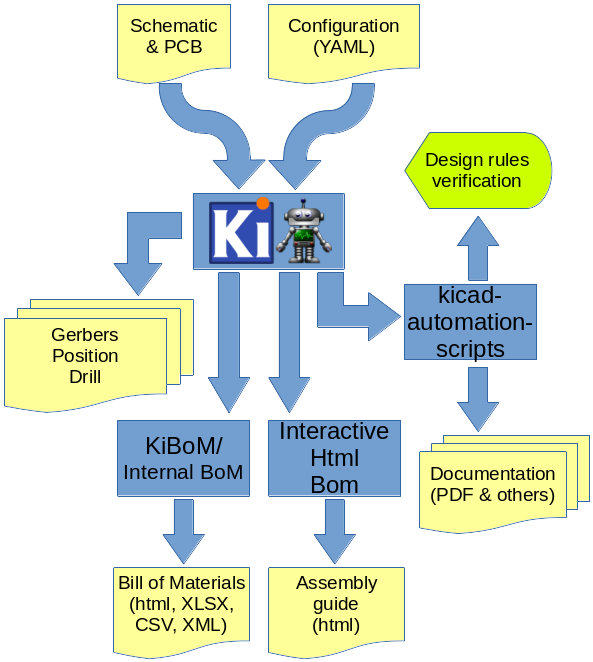
If you want to see this concept applied to a real world project visit the Spora CI/CD example.
KiBot main target is Linux, but some users successfully use it on Windows. For Windows you'll need to install tools to mimic a Linux environment. Running KiBot on MacOSX should be possible now that KiCad migrated to Python 3.x.
You can also run KiBot using docker images in a CI/CD environment like GitHub or GitLab. In this case you don't need to install anything locally.
Notes:
pip the dependencies marked with  will be automatically installed.
 can be downloaded on-demand by KiBot.
Note this is poorly tested and is mostly oriented to 64 bits Linux systems. Please report problems.
kibot-check tool can help you to know which dependencies are missing.policy.xml file.
Comment or remove lines like this: <policy domain="coder" rights="none" pattern="PDF" /> (On Debian: /etc/ImageMagick-6/policy.xml) Link to Debian stable package.
 This is a Python module, not a separated tool.
 This is an independent tool, can be a binary or a Python script.
KiCad Automation tools v2.2.1
dxf_sch_print, gencad, hpgl_sch_print, netlist, pdf_pcb_print, pdf_sch_print, ps_sch_print, render_3d, run_drc, run_erc, step, svg_pcb_print, svg_sch_print, update_xml, vrmldiff (v2.2.0)info (v2.0.0)pcb_print (v1.6.7)KiKit v1.3.0.4
panelize, stencil_3d, stencil_for_jigpcb_print, pcbdrawstencil_3d, stencil_for_jigstencil_3d, stencil_for_jigstencil_3d, stencil_for_jigKiCost v1.1.8
kicostbomBlender v3.4.0
blender_exportInteractive HTML BoM v2.4.1.4
ibomKiBoM v1.8.0
kibomKiCad PCB/SCH Diff v2.4.4
diffkikit_presentpopulateqr_libdiffkikit_presentpcb_replacesch_replaceset_text_variablesblender_exportnavigate_resultspcb_printpcbdrawrender_3dnavigate_resultsnavigate_resultspcb_printpcbdrawpcb_replacesch_replaceset_text_variablesnavigate_resultspcb_printpcbdrawreportkicad_auto_test docker image contains it.compressbomThe easiest way is to use the repo, but if you want to manually install the individual .deb files you can:
Get the Debian package from the releases section and run:
sudo apt install ./kibot*_all.debImportant note: Sometimes the release needs another packages that aren't part of the stable Debian distribution. In this case the packages are also included in the release page. As an example version 0.6.0 needs:
sudo apt install ./python3-mcpy_2.0.2-1_all.deb ./kibot_0.6.0-1_all.debImportant note: The KiCad Automation Scripts packages are a mandatory dependency. The KiBoM, InteractiveHtmlBom and PcbDraw are recommended.
pip install --no-compile kibotNote that pip has the dubious idea of compiling everything it downloads.
There is no advantage in doing it and it interferes with the mcpy macros.
Also note that in modern Linux systems pip was renamed to pip3, to avoid confusion with pip from Python 2.
If you are installing at system level I recommend generating the compilation caches after installing.
As root just run:
kibot --help-outputs > /dev/nullNote that pip will automatically install all the needed Python dependencies.
But it won't install other interesting dependencies.
In particular you should take a look at the KiCad Automation Scripts dependencies.
If you have a Debian based OS I strongly recommend trying to use the .deb packages for all the tools.
If you want to install the code only for the current user add the --user option.
If you want to install the last git code from GitHub using pip use:
pip3 install --user git+https://github.com/INTI-CMNB/KiBot.gitYou can also clone the repo, change to its directory and install using:
pip3 install --user -e .In this way you can change the code and you won't need to install again.
If you try to use a Python virtual environment you'll need to find a way to make the KiCad module (pcbnew) available on it.
I don't know how to make it.
In addition: note that the virtual env will change the system share data paths. They will no longer point to things like /usr/share/
but to a virtual env place. So you'll need to either define environment variables to tell KiBot where are the libs or just add
symlinks from the virtual env to the system level libs.
KiBot uses a configuration file where you can specify what outputs to generate and which preflight (before launching the outputs generation) actions to perform. By default you'll generate all of them, but you can specify which ones from the command line.
The configuration file should be named using the .kibot.yaml suffix, i.e. my_project.kibot.yaml. The format used is YAML. This is basically a text file with some structure. This file can be compressed using gzip file format.
If you never used YAML read the following explanation. Note that the explanation could be useful even if you know YAML.
If you want to learn by examples, or you just want to take a look a what
KiBot can do, you can use the --quick-start command line option.
First change to the directory where your project (or projects) is located. Now run KiBot like this:
kibot --quick-startThis will look for KiCad projects starting from the current directory and going down the directory structure. For each project found KiBot will generate a configuration file showing some common outputs. After creating the configuration files KiBot will start the outputs generation.
Here is an example of what's generated using the following example repo.
You can use the generated files as example of how to configure KiBot. If you want to just generate the configuration files and not the outputs use:
kibot --quick-start --dryIf you want to know about all the possible options for all the available outputs you can try:
kibot --exampleThis will generate a configuration file with all the available outputs and all their options.
The file is divided in various sections. Some of them are optional.
The order in which they are declared is not relevant, they are interpreted in the following order:
kiplot/kibot see The headerimport see Importing outputs from another file,
Importing filters and variants from another file and
Importing internal templatesglobal see Default global optionsfilters see Filters and variantsvariants see Filters and variantspreflight see The preflight sectionoutputs see The outputs sectiongroups see Grouping outputsAll configuration files must start with:
kibot:
  version: 1
This tells to KiBot that this file is using version 1 of the format.
This section is used to specify tasks that will be executed before generating any output.
annotate_pcb: [dict] Annotates the PCB according to physical coordinates.
This preflight modifies the PCB and schematic, use it only in revision control environments.
Used to assign references according to footprint coordinates.
The project must be fully annotated first.
bottom_main_ascending: [boolean=true] Sort the main axis in ascending order for the bottom layer.
For X this is left to right and for Y top to bottom.bottom_main_axis: [string='y'] [x,y] Use this axis as main sorting criteria for the bottom layer.bottom_secondary_ascending: [boolean=true] Sort the secondary axis in ascending order for the bottom layer.
For X this is left to right and for Y top to bottom.bottom_start: [number=101] First number for references at the bottom layer.
Use -1 to continue from the last top reference.grid: [number=1.0] Grid size in millimeters.top_main_ascending: [boolean=true] Sort the main axis in ascending order for the top layer.
For X this is left to right and for Y top to bottom.top_main_axis: [string='y'] [x,y] Use this axis as main sorting criteria for the top layer.top_secondary_ascending: [boolean=true] Sort the secondary axis in ascending order for the top layer.
For X this is left to right and for Y top to bottom.top_start: [number=1] First number for references at the top layer.use_position_of: [string='footprint'] [footprint,reference] Which coordinate is used.annotate_power: [boolean=false] Annotates all power components.
This preflight modifies the schematic, use it only in revision control environments.
Used to solve ERC problems when using filters that remove power reference numbers.check_zone_fills: [boolean=false] Zones are filled before doing any operation involving PCB layers.
The original PCB remains unchanged.erc_warnings: [boolean=false] Option for run_erc. ERC warnings are considered errors.fill_zones: [boolean=false] Fill all zones again and save the PCB.filters: [list(dict)] A list of entries to filter out ERC/DRC messages.
Note that ignored errors will become KiBot warnings (i.e. (W058) ...).
To farther ignore these warnings use the filters option in the global section.
error: [string=''] Error id we want to exclude.
A name for KiCad 6 or a number for KiCad 5, but always a string.filter: [string=''] Name for the filter, for documentation purposes.number: [number=0] Error number we want to exclude.
KiCad 5 only.regex: [string=''] Regular expression to match the text for the error we want to exclude.ignore_unconnected: [boolean=false] Option for run_drc. Ignores the unconnected nets. Useful if you didn't finish the routing.
It will also ignore KiCad 6 warnings.pcb_replace: [dict] Replaces tags in the PCB. I.e. to insert the git hash or last revision date.
This is useful for KiCad 5, use set_text_variables when using KiCad 6.
This preflight modifies the PCB. Even when a back-up is done use it carefully.
date_command: [string=''] Command to get the date to use in the PCB.git log -1 --format='%as' -- "$KIBOT_PCB_NAME"date -d @`git log -1 --format='%at' -- "$KIBOT_PCB_NAME"` +%Y-%m-%d_%H-%M-%Sreplace_tags: [dict|list(dict)] Tag or tags to replace.
after: [string=''] Text to add after the output of command.before: [string=''] Text to add before the output of command.command: [string=''] Command to execute to get the text, will be used only if text is empty.
KIBOT_PCB_NAME variable is the name of the current PCB.tag: [string=''] Name of the tag to replace. Use version for a tag named @version@.tag_delimiter: [string='@'] Character used to indicate the beginning and the end of a tag.
Don't change it unless you really know about KiCad's file formats.text: [string=''] Text to insert instead of the tag.run_drc: [boolean=false] Runs the DRC (Distance Rules Check). To ensure we have a valid PCB.
The report file name is controlled by the global output pattern (%i=drc %x=txt).
Note that the KiCad 6+ Test for parity between PCB and schematic option is not supported.
If you need to check the parity use the update_xml preflight.
KiCad 6 introduced warnings they are currently counted be the unconnected counter of KiBot.
This will change in the future.run_erc: [boolean=false] Runs the ERC (Electrical Rules Check). To ensure the schematic is electrically correct.
The report file name is controlled by the global output pattern (%i=erc %x=txt).sch_replace: [dict] Replaces tags in the schematic. I.e. to insert the git hash or last revision date.
This is useful for KiCad 5, use set_text_variables when using KiCad 6.
This preflight modifies the schematics. Even when a back-up is done use it carefully.
date_command: [string=''] Command to get the date to use in the SCH.git log -1 --format='%as' -- "$KIBOT_SCH_NAME"date -d @`git log -1 --format='%at' -- "$KIBOT_SCH_NAME"` +%Y-%m-%d_%H-%M-%Sreplace_tags: [dict|list(dict)] Tag or tags to replace.
after: [string=''] Text to add after the output of command.before: [string=''] Text to add before the output of command.command: [string=''] Command to execute to get the text, will be used only if text is empty.
KIBOT_SCH_NAME variable is the name of the current sheet.
KIBOT_TOP_SCH_NAME variable is the name of the top sheet.tag: [string=''] Name of the tag to replace. Use version for a tag named @version@.tag_delimiter: [string='@'] Character used to indicate the beginning and the end of a tag.
Don't change it unless you really know about KiCad's file formats.text: [string=''] Text to insert instead of the tag.set_text_variables: [dict|list(dict)] Defines KiCad 6 variables.
They are expanded using ${VARIABLE}, and stored in the project file.
This preflight replaces pcb_replace and sch_replace when using KiCad 6.
The KiCad project file is modified.
after: [string=''] Text to add after the output of command.before: [string=''] Text to add before the output of command.command: [string=''] Command to execute to get the text, will be used only if text is empty.
This command will be executed using the Bash shell.
Be careful about spaces in file names (i.e. use "$KIBOT_PCB_NAME").
The KIBOT_PCB_NAME environment variable is the PCB file and the
KIBOT_SCH_NAME environment variable is the schematic file.expand_kibot_patterns: [boolean=true] Expand %X patterns. The context is schematic.name: [string=''] Name of the variable. The version variable will be expanded using ${version}.text: [string=''] Text to insert instead of the variable.update_qr: [boolean=false] Update the QR codes.
Complements the qr_lib output.
The KiCad 6 files and the KiCad 5 PCB needs manual update, generating a new library isn't enough.update_xml: [boolean=false|dict] Update the XML version of the BoM (Bill of Materials).
To ensure our generated BoM is up to date.
Note that this isn't needed when using the internal BoM generator (bom).
You can compare the PCB and schematic netlists using it.
check_pcb_parity: [boolean=false] Check if the PCB and Schematic are synchronized.
This is equivalent to the Test for parity between PCB and schematic of the DRC dialog.
Only available for KiCad 6.as_warnings: [boolean=false] Inform the problems as warnings and don't stop.enabled: [boolean=true] Enable the update. This is the replacement for the boolean value.Here is an example of a preflight section:
preflight:
  run_erc: true
  update_xml: true
  run_drc: true
  check_zone_fills: true
ignore_unconnected: falseThese options are supposed to be used in a version control environment. This is because, unlike other options, they modify the PCB and/or schematic and might damage them. In a version control environment you can just roll-back the changes.
Don't be afraid, they make a back-up of the files and also tries to disable dangerous changes. But should be used carefully. They are ideal for CI/CD environment where you don't actually commit any changes.
Sometimes KiCad reports DRC or ERC errors that you can't get rid off. This could be just because you are part of a team including lazy people that doesn't want to take the extra effort to solve some errors that aren't in fact errors, just small violations made on purpose. In this case you could exclude some known errors.
For this you must declare filters entry in the preflight section. Then you can add as many filter entries as you want.
Each filter entry has an optional description and defines to which error type is applied (number) and a regular expression
that the error must match to be ignored (regex). Like this:
  filters:
    - filter: 'Optional filter description'
      error: 'Error_type'
      regex:  'Expression to match'
Here is a KiCad 5 example, suppose you are getting the following errors:
** Found 1 DRC errors **
ErrType(4): Track too close to pad
    @(177.185 mm, 78.315 mm): Track 1.000 mm [Net-(C3-Pad1)] on F.Cu, length: 1.591 mm
    @(177.185 mm, 80.715 mm): Pad 2 of C3 on F.Cu and others

** Found 1 unconnected pads **
ErrType(2): Unconnected items
    @(177.185 mm, 73.965 mm): Pad 2 of C4 on F.Cu and others
    @(177.185 mm, 80.715 mm): Pad 2 of C3 on F.Cu and others
And you want to ignore them. You can add the following filters:
  filters:
    - filter: 'Ignore C3 pad 2 too close to anything'
      error: '4'
      regex:  'Pad 2 of C3'
    - filter: 'Ignore unconnected pad 2 of C4'
      error: '2'
      regex:  'Pad 2 of C4'
If you need to match text from two different lines in the error message try using (?s)TEXT(.*)TEXT_IN_OTHER_LINE.
If you have two or more different options for a text to match try using (OPTION1|OPTION2).
A complete Python regular expressions explanation is out of the scope of this manual. For a complete reference consult the Python manual.
KiCad 6 uses strings to differentiate errors, use them for the error field. To keep compatibility you can use the number or error_number options for KiCad 5.
Note that this will ignore the errors, but they will be reported as warnings. If you want to suppress these warnings take a look at Filtering KiBot warnings
Important note: this will create a file named kibot_errors.filter in the output directory.
The section global contains default global options that affects all the outputs.
Currently only a few option are supported.
This option controls the default file name pattern used by all the outputs. This makes all the file names coherent. You can always choose the file name for a particular output.
The pattern uses the following expansions:
n comments line n from pcb/sch metadata.file_id of the global variant.name of the global variant.file_id of the current variant, or the global variant if outside a variant scope.name of the current variant, or the global variant if outside a variant scope.They are compatible with the ones used by IBoM.
The default value for global.output is %f-%i%I%v.%x.
If you want to include the revision you could add the following definition:
global:
  output: '%f_rev_%r-%i.%x'
Note that the following patterns: %c, %Cn, %d, %f, %F, %p and %r depends on the context.
If you use them for an output related to the PCB these values will be obtained from the PCB.
If you need to force the origin of the data you can use %bX for the PCB and %sX for the schematic, where
X is the pattern to expand.
You can also use text variables (introduced in KiCad 6). To expand a text variable use ${VARIABLE}.
The default dir value for any output is .. You can change it here.
Expansion patterns are allowed.
Note that you can use this value as a base for output's dir options. In this case the value defined in the output must start with +.
In this case the + is replaced by the default dir value defined here.
This option controls the default variant applied to all the outputs. Example:
global:
variant: 'production'This option controls the default value for the position and bom outputs.
If you don't define it then the internal defaults of each output are applied. But when you define it the default is the defined value.
On KiCad 6 the dimensions has units. When you create a new dimension it uses automatic units. This means that KiCad uses the units currently selected.
This selection isn't stored in the PCB file. The global units value is used by KiBot instead.
The out_dir option can define the base output directory. This is the same as the -d/--out-dir command line option.
Note that the command line option has precedence over it.
Expansion patterns are applied to this value, but you should avoid using patterns that expand according to the context, i.e. %c, %d, %f, %F, %p and %r. The behavior of these patterns isn't fully defined in this case and the results may change in the future.
You can also use text variables (introduced in KiCad 6). To expand a text variable use ${VARIABLE}.
date_time_format global option controls the format used.
When available, and in ISO format, the date_format controls the format used.
You can disable this reformatting assigning false to the date_reformat option.date_format global option.time_format global option.In all cases the format is the one used by the strftime POSIX function, for more information visit this site.
The following variables control the default colors and they are used for documentation purposes:
pcb_material [FR4] PCB core material.
Currently known are FR1 to FR5solder_mask_color [green] Color for the solder mask.
Currently known are green, black, white, yellow, purple, blue and red.silk_screen_color [white] Color for the markings.
Currently known are black and white.pcb_finish [HAL] Finishing used to protect pads.
Currently known are None, HAL, HASL, ENIG and ImAg.KiBot warnings are marked with (Wn) where n is the warning id.
Some warnings are just recommendations and you could want to avoid them to focus on details that are more relevant to your project. In this case you can define filters in a similar way used to filter DRC/ERC errors.
As an example, if you have the following warning:
WARNING:(W43) Missing component `l1:FooBar`You can create the following filter to remove it:
global:
  filters:
    - number: 43
regex: 'FooBar'global:
aliases_for_3d_models: [list(dict)] List of aliases for the 3D models (KiCad 6).
KiCad stores 3D aliases with the user settings, not locally.
This makes impossible to create self contained projects.
You can define aliases here to workaround this problem.
The values defined here has precedence over the KiCad configuration.
Related to https://gitlab.com/kicad/code/kicad/-/issues/3792.
name: [string=''] Name of the alias.value: [string=''] Path to the 3D model.allow_blind_buried_vias: [boolean=true] Allow the use of buried vias. This value is only used for KiCad 7+.
For KiCad 5 and 6 use the design rules settings, stored in the project.allow_microvias: [boolean=true] Allow the use of micro vias. This value is only used for KiCad 7+.
For KiCad 5 and 6 use the design rules settings, stored in the project.castellated_pads: [boolean=false] Has the PCB castellated pads?
KiCad 6: you should set this in the Board Setup -> Board Finish -> Has castellated pads.copper_thickness: [number|string] Copper thickness in micrometers (1 Oz is 35 micrometers).
KiCad 6: you should set this in the Board Setup -> Physical Stackup.cross_footprints_for_dnp: [boolean=true] Draw a cross for excluded components in the Fab layer.cross_no_body: [boolean=false] Cross components even when they don't have a body. Only for KiCad 6 and internal cross.cross_using_kicad: [boolean=true] When using KiCad 7+ let KiCad cross the components.csv_accept_no_ref: [boolean=false] Accept aggregating CSV files without references (Experimental).date_format: [string='%Y-%m-%d'] Format used for the day we started the script.
Is also used for the PCB/SCH date formatting when time_reformat is enabled (default behavior).
Uses the strftime format.date_time_format: [string='%Y-%m-%d_%H-%M-%S'] Format used for the PCB and schematic date when using the file timestamp. Uses the strftime format.dir: [string=''] Default pattern for the output directories. It also applies to the preflights, unless
use_dir_for_preflights is disabled.disable_3d_alias_as_env: [boolean=false] Disable the use of environment and text variables as 3D models aliases.drc_exclusions_workaround: [boolean=false] KiCad 6 introduced DRC exclusions. They are stored in the project but ignored by the Python API.
This is reported as bug number 11562 (https://gitlab.com/kicad/code/kicad/-/issues/11562).
If you really need exclusions enable this option, this will use the GUI version of the DRC (slower).
Current KiCad version is 6.0.7 and the bug is still there.drill_size_increment: [number=0.05] This is the difference between drill tools in millimeters.
A manufacturer with 0.05 of increment has drills for 0.1, 0.15, 0.2, 0.25, etc..edge_connector: [string='no'] [yes,no,bevelled] Has the PCB edge connectors?
KiCad 6: you should set this in the Board Setup -> Board Finish -> Edge card connectors.edge_plating: [boolean=false] Has the PCB a plated board edge?
KiCad 6: you should set this in the Board Setup -> Board Finish -> Plated board edge.environment: [dict] Used to define environment variables used by KiCad.
The values defined here are exported as environment variables and has
more precedence than KiCad paths defined in the GUI.
You can make reference to any OS environment variable using ${VARIABLE}.
The KIPRJMOD is also available for expansion.
define_old: [boolean=false] Also define legacy versions of the variables.
Useful when using KiCad 6 and some libs uses old KiCad 5 names.footprints: [string=''] System level footprints (aka modules) dir. KiCad 5: KICAD_FOOTPRINT_DIR and KISYSMOD.
KiCad 6: KICAD6_FOOTPRINT_DIR.models_3d: [string=''] System level 3D models dir. KiCad 5: KISYS3DMOD. KiCad 6: KICAD6_3DMODEL_DIR.symbols: [string=''] System level symbols dir. KiCad 5: KICAD_SYMBOL_DIR. KiCad 6: KICAD6_SYMBOL_DIR.templates: [string=''] System level templates dir. KiCad 5: KICAD_TEMPLATE_DIR. KiCad 6: KICAD6_TEMPLATE_DIR.third_party: [string=''] 3rd party dir. KiCad 6: KICAD6_3RD_PARTY.user_templates: [string=''] User level templates dir. KiCad 5/6: KICAD_USER_TEMPLATE_DIR.erc_grid: [number=50] Grid size used for the ERC. This value must be in mils.
This is needed for KiCad 7 in order to run the off grid check.
Shouldn't be needed in KiCad 8.
https://gitlab.com/kicad/code/kicad/-/issues/14110.extra_pth_drill: [number=0.1] How many millimeters the manufacturer will add to plated holes.
This is because the plating reduces the hole, so you need to use a bigger drill.
For more information consult: https://www.eurocircuits.com/pcb-design-guidelines/drilled-holes/.field_3D_model: [string='_3D_model'] Name for the field controlling the 3D models used for a component.field_lcsc_part: [string=''] The name of the schematic field that contains the part number for the LCSC/JLCPCB distributor.
When empty KiBot will try to discover it.filters: [list(dict)] KiBot warnings to be ignored.
error: [string=''] Error id we want to exclude.filter: [string=''] Name for the filter, for documentation purposes.number: [number=0] Error number we want to exclude.regex: [string=''] Regular expression to match the text for the error we want to exclude.hide_excluded: [boolean=false] Default value for the hide_excluded option of various PCB outputs.impedance_controlled: [boolean=false] The PCB needs specific dielectric characteristics.
KiCad 6: you should set this in the Board Setup -> Physical Stackup.kiauto_time_out_scale: [number=0.0] Time-out multiplier for KiAuto operations.kiauto_wait_start: [number=0] Time to wait for KiCad in KiAuto operations.kicad_dnp_applied: [boolean=true] The KiCad v7 PCB flag Do Not Populate is applied to our fitted flag before running any filter.kicad_dnp_applies_to_3D: [boolean=true] The KiCad v7 PCB flag Do Not Populate is applied to our fitted flag for 3D models,
even when no filter/variant is specified. Disabling kicad_dnp_applied also disables
this flag.out_dir: [string=''] Base output dir, same as command line --out-dir.output: [string='%f-%i%I%v.%x'] Default pattern for output file names. Affected by global options.pcb_finish: [string='HAL'] Finishing used to protect pads. Currently used for documentation and to choose default colors.
KiCad 6: you should set this in the Board Setup -> Board Finish -> Copper Finish option.
Currently known are None, HAL, HASL, HAL SnPb, HAL lead-free, ENIG, ENEPIG, Hard gold, ImAg, Immersion Silver,
Immersion Ag, ImAu, Immersion Gold, Immersion Au, Immersion Tin, Immersion Nickel, OSP and HT_OSP.pcb_material: [string='FR4'] PCB core material. Currently used for documentation and to choose default colors.
Currently known are FR1 to FR5.remove_adhesive_for_dnp: [boolean=true] When applying filters and variants remove the adhesive (glue) for components that won't be included.remove_solder_paste_for_dnp: [boolean=true] When applying filters and variants remove the solder paste for components that won't be included.restore_project: [boolean=false] Restore the KiCad project after execution.
Note that this option will undo operations like set_text_variables.set_text_variables_before_output: [boolean=false] Run the set_text_variables preflight before running each output that involves variants.
This can be used when a text variable uses the variant and you want to create more than
one variant in the same run. Note that this could be slow because it forces a board
reload each time you run an output that uses variants.silk_screen_color: [string='white'] Color for the markings. Currently used for documentation and to choose default colors.
KiCad 6: you should set this in the Board Setup -> Physical Stackup.
Currently known are black and white.silk_screen_color_bottom: [string=''] Color for the bottom silk screen. When not defined silk_screen_color is used.
Read silk_screen_color help.silk_screen_color_top: [string=''] Color for the top silk screen. When not defined silk_screen_color is used.
Read silk_screen_color help.solder_mask_color: [string='green'] Color for the solder mask. Currently used for documentation and to choose default colors.
KiCad 6: you should set this in the Board Setup -> Physical Stackup.
Currently known are green, black, white, yellow, purple, blue and red.solder_mask_color_bottom: [string=''] Color for the bottom solder mask. When not defined solder_mask_color is used.
Read solder_mask_color help.solder_mask_color_top: [string=''] Color for the top solder mask. When not defined solder_mask_color is used.
Read solder_mask_color help.time_format: [string='%H-%M-%S'] Format used for the time we started the script. Uses the strftime format.time_reformat: [boolean=true] Tries to reformat the PCB/SCH date using the date_format.
This assumes you let KiCad fill this value and hence the time is in ISO format (YY-MM-DD).units: [string=''] [millimeters,inches,mils] Default units. Affects position, bom and panelize outputs.
Also KiCad 6 dimensions.use_dir_for_preflights: [boolean=true] Use the global dir as subdir for the preflights.variant: [string=''] Default variant to apply to all outputs.The filters and variants are mechanisms used to modify the circuit components. Both concepts are closely related. In fact variants can use filters.
The current implementation of the filters allow to exclude components from some of the processing stages. The most common use is to exclude them from some output. You can also change components fields/properties and also the 3D model.
Variants are currently used to create assembly variants. This concept is used to manufacture one PCB used for various products. You can learn more about KiBot variants on the following example repo. The example is currently using KiCad 6, if you want to see the example files for KiCad 5 go here.
As mentioned above the current use of filters is to mark some components. Mainly to exclude them, but also to mark them as special. This is the case of do not change components in the BoM.
Filters and variants are defined in separated sections. A filter section looks like this:
filters:
 - name: 'a_short_name'
   type: 'generic'
   comment: 'A description'
# Filter optionscomment: [string=''] A comment for documentation purposes.include_kicad_env: [boolean=true] Also expand KiCad environment variables.include_os_env: [boolean=false] Also expand system environment variables.name: [string=''] Used to identify this particular filter definition.comment: [string=''] A comment for documentation purposes.fields: [string|list(string)='Datasheet'] Fields to convert.include: [string|list(string)=''] Name of the filter to select which components will be affected.
Applied to all if nothing specified here.name: [string=''] Used to identify this particular filter definition.regex: [string='(https?://\S+)'] Regular expression to match the field content.
Only fields that matches will be modified.
An empty regex will match anything.
The example matches an HTTP URL.replace: [string='\1'] Text to replace, can contain references to sub-expressions.
The example converts an HTTP URL into an HTML link, like the URLify filter._kicost_rename filter emulates the KiCost behavior.
comment: [string=''] A comment for documentation purposes.name: [string=''] Used to identify this particular filter definition.rename: [list(dict)] Fields to rename.
field: [string=''] Name of the field to rename.name: [string=''] New name._mechanical filter emulates the KiBoM behavior for default exclusions.
The internal _kicost_dnp filter emulates KiCost's dnp field.
comment: [string=''] A comment for documentation purposes.config_field: [string='Config'] Name of the field used to classify components.config_separators: [string=' ,'] Characters used to separate options inside the config field.exclude_all_hash_ref: [boolean=false] Exclude all components with a reference starting with #.exclude_any: [list(dict)] A series of regular expressions used to exclude parts.
If a component matches ANY of these, it will be excluded.
Column names are case-insensitive.
column: [string=''] Name of the column to apply the regular expression.
Use _field_lcsc_part to get the value defined in the global options.invert: [boolean=false] Invert the regex match result.match_if_field: [boolean=false] Match if the field exists, no regex applied. Not affected by invert.match_if_no_field: [boolean=false] Match if the field doesn't exists, no regex applied. Not affected by invert.regex: [string=''] Regular expression to match.skip_if_no_field: [boolean=false] Skip this test if the field doesn't exist.exclude_bottom: [boolean=false] Exclude components on the bottom side of the PCB.exclude_config: [boolean=false] Exclude components containing a key value in the config field.
Separators are applied.exclude_empty_val: [boolean=false] Exclude components with empty 'Value'.exclude_field: [boolean=false] Exclude components if a field is named as any of the keys.exclude_refs: [list(string)] List of references to be excluded.
Use R* for all references with R prefix.exclude_smd: [boolean=false] Exclude components marked as smd in the PCB.exclude_tht: [boolean=false] Exclude components marked as through-hole in the PCB.exclude_top: [boolean=false] Exclude components on the top side of the PCB.exclude_value: [boolean=false] Exclude components if their 'Value' is any of the keys.exclude_virtual: [boolean=false] Exclude components marked as virtual in the PCB.include_only: [list(dict)] A series of regular expressions used to include parts.
If there are any regex defined here, only components that match against ANY of them will be included.
Column/field names are case-insensitive.
If empty this rule is ignored.
column: [string=''] Name of the column to apply the regular expression.
Use _field_lcsc_part to get the value defined in the global options.invert: [boolean=false] Invert the regex match result.match_if_field: [boolean=false] Match if the field exists, no regex applied. Not affected by invert.match_if_no_field: [boolean=false] Match if the field doesn't exists, no regex applied. Not affected by invert.regex: [string=''] Regular expression to match.skip_if_no_field: [boolean=false] Skip this test if the field doesn't exist.invert: [boolean=false] Invert the result of the filter.keys: [string|list(string)=dnf_list] [dnc_list,dnf_list] List of keys to match.
The dnf_list and dnc_list internal lists can be specified as strings.
Use dnf_list for ['dnf', 'dnl', 'dnp', 'do not fit', 'do not load', 'do not place', 'no stuff', 'nofit', 'noload', 'noplace', 'nostuff', 'not fitted', 'not loaded', 'not placed'].
Use dnc_list for ['dnc', 'do not change', 'fixed', 'no change'].name: [string=''] Used to identify this particular filter definition._rot_footprint filter implements the simplest case.
comment: [string=''] A comment for documentation purposes.extend: [boolean=true] Extends the internal list of rotations with the one provided.
Otherwise just use the provided list.invert_bottom: [boolean=false] Rotation for bottom components is negated, resulting in either: (- component rot - angle)
or when combined with negative_bottom, (angle - component rot).name: [string=''] Used to identify this particular filter definition.negative_bottom: [boolean=true] Rotation for bottom components is computed via subtraction as (component rot - angle).rotations: [list(list(string))] A list of pairs regular expression/rotation.
Components matching the regular expression will be rotated the indicated angle.skip_bottom: [boolean=false] Do not rotate components on the bottom.skip_top: [boolean=false] Do not rotate components on the top.check_multiplier: [list(string)] List of fields to include for multiplier computation.
If empty all fields in split_fields and manf_pn_field are used.comment: [string=''] A comment for documentation purposes.manf_field: [string='manf'] Field for the manufacturer name.manf_pn_field: [string='manf#'] Field for the manufacturer part number.modify_first_value: [boolean=true] Modify even the value for the first component in the list (KiCost behavior).modify_value: [boolean=true] Add '- p N/M' to the value.mult_separators: [string=':'] Separators used for the multiplier. Each character in this string is a valid separator.multiplier: [boolean=true] Enables the subpart multiplier mechanism.name: [string=''] Used to identify this particular filter definition.ref_sep: [string='#'] Separator used in the reference (i.e. R10#1).separators: [string=';,'] Separators used between subparts. Each character in this string is a valid separator.split_fields: [list(string)] List of fields to split, usually the distributors part numbers.split_fields_expand: [boolean=false] When true the fields in split_fields are added to the internal names.use_ref_sep_for_first: [boolean=true] Force the reference separator use even for the first component in the list (KiCost behavior).value_alt_field: [string='value_subparts'] Field containing replacements for the Value field. So we get real values for split parts.comment: [string=''] A comment for documentation purposes.fields: [string|list(string)='Datasheet'] Fields to convert.name: [string=''] Used to identify this particular filter definition.comment: [string=''] A comment for documentation purposes.force_variant: [string=''] Use this variant instead of the current variant. Useful for IBoM variants.name: [string=''] Used to identify this particular filter definition.separator: [string=':'] Separator used between the variant and the field name.variant_to_value: [boolean=false] Rename fields matching the variant to the value of the component._var_rename_kicost filter emulates the KiCost behavior.
comment: [string=''] A comment for documentation purposes.name: [string=''] Used to identify this particular filter definition.prefix: [string='kicost.'] A mandatory prefix. Is not case sensitive.separator: [string=':'] Separator used between the variant and the field name.variant: [string=''] Variant regex to match the VARIANT part.
When empty the currently selected variant is used.variant_to_value: [boolean=false] Rename fields matching the variant to the value of the component.The tests/yaml_samples directory contains all the regression tests. Many of them test the filters functionality.
dnf_filter for a KiBoM variant.print_pdf_no_inductors_1.kibot.yaml does but without the need of a variant.expand_text_vars filterdnc_list to exclude components with
Config field (comma or space separated)dnf_list to exclude components with
Config field (comma or space separated)dnp field.
field_rename filter that applies KiCost renamings.
manf# and manf variations supported by KiCostrot_footprint filtervar_rename filtervar_rename_kicost filterNote that the kibom... filters uses a field named Config, but you can customise them invoking _kibom_dnf_FIELD. This will create an equivalent filter, but using the indicated FIELD.
ibom: IBoM variant style
The Config field (configurable) contains a value.
If this value matches with a value in the whitelist is included.
If this value matches with a value in the blacklist is excluded.
comment: [string=''] A comment for documentation purposes.dnc_filter: [string|list(string)=''] Name of the filter to mark components as 'Do Not Change'.
Use '_kibom_dnc' for the default KiBoM behavior.dnf_filter: [string|list(string)=''] Name of the filter to mark components as 'Do Not Fit'.
Use '_kibom_dnf' for the default KiBoM behavior.
Use '_kicost_dnp'' for the default KiCost behavior.exclude_filter: [string|list(string)=''] Name of the filter to exclude components from BoM processing.
Use '_mechanical' for the default KiBoM behavior.file_id: [string=''] Text to use as the replacement for %v expansion.name: [string=''] Used to identify this particular variant definition.pre_transform: [string|list(string)=''] Name of the filter to transform fields before applying other filters.
Use '_var_rename' to transform VARIANT:FIELD fields.
Use '_var_rename_kicost' to transform kicost.VARIANT:FIELD fields.
Use '_kicost_rename' to apply KiCost field rename rules.sub_pcbs: [list(dict)] Used for multi-board workflows as defined by KiKit.
I don't recommend using it, for detail read
this.
But if you really need it you can define the sub-PCBs here.
Then you just use VARIANT[SUB_PCB_NAME] instead of just VARIANT.
name: [string=''] Name for this sub-pcb.reference: [string=''] Use it for the annotations method.
This is the reference for the kikit:Board footprint used to identify the sub-PCB.
Note that you can use any footprint as long as its position is inside the PCB outline.
When empty the sub-PCB is specified using a rectangle.brx: [number|string] The X position of the bottom right corner for the rectangle that contains the sub-PCB.bry: [number|string] The Y position of the bottom right corner for the rectangle that contains the sub-PCB.center_result: [boolean=true] Move the resulting PCB to the center of the page.
You can disable it only for the internal tool, KiKit should always do it.file_id: [string=''] Text to use as the replacement for %v expansion.
When empty we use the parent file_id plus the name of the sub-PCB.strip_annotation: [boolean=false] Remove the annotation footprint. Note that KiKit will remove all annotations,
but the internal implementation just the one indicated by ref.
If you need to remove other annotations use an exclude filter.tlx: [number|string] The X position of the top left corner for the rectangle that contains the sub-PCB.tly: [number|string] The Y position of the top left corner for the rectangle that contains the sub-PCB.tolerance: [number|string] Used to enlarge the selected rectangle to include elements outside the board.
KiCad 5: To avoid rounding issues this value is set to 0.000002 mm when 0 is specified.tool: [string='internal'] [internal,kikit] Tool used to extract the sub-PCB..units: [string='mm'] [millimeters,inches,mils,mm,cm,dm,m,mil,inch,in] Units used when omitted.variant_field: [string='Config'] Name of the field that stores board variant for component.variants_blacklist: [string|list(string)=''] List of board variants to exclude from the BOM.variants_whitelist: [string|list(string)=''] List of board variants to include in the BOM.kibom: KiBoM variant style
The Config field (configurable) contains a comma separated list of variant directives.
-VARIANT excludes a component from VARIANT.
+VARIANT includes the component only if we are using this variant.
comment: [string=''] A comment for documentation purposes.config_field: [string='Config'] Name of the field used to classify components.dnc_filter: [string|list(string)='_kibom_dnc_CONFIG_FIELD'] Name of the filter to mark components as 'Do Not Change'.
Use '_kibom_dnc' for the default KiBoM behavior.dnf_filter: [string|list(string)='_kibom_dnf_CONFIG_FIELD'] Name of the filter to mark components as 'Do Not Fit'.
Use '_kibom_dnf' for the default KiBoM behavior.
Use '_kicost_dnp'_kibom_dnf_CONFIG_FIELD' for the default KiCost behavior.exclude_filter: [string|list(string)='_mechanical'] Name of the filter to exclude components from BoM processing.
Use '_mechanical' for the default KiBoM behavior.file_id: [string=''] Text to use as the replacement for %v expansion.name: [string=''] Used to identify this particular variant definition.pre_transform: [string|list(string)=''] Name of the filter to transform fields before applying other filters.
Use '_var_rename' to transform VARIANT:FIELD fields.
Use '_var_rename_kicost' to transform kicost.VARIANT:FIELD fields.
Use '_kicost_rename' to apply KiCost field rename rules.sub_pcbs: [list(dict)] Used for multi-board workflows as defined by KiKit.
I don't recommend using it, for detail read
this.
But if you really need it you can define the sub-PCBs here.
Then you just use VARIANT[SUB_PCB_NAME] instead of just VARIANT.
name: [string=''] Name for this sub-pcb.reference: [string=''] Use it for the annotations method.
This is the reference for the kikit:Board footprint used to identify the sub-PCB.
Note that you can use any footprint as long as its position is inside the PCB outline.
When empty the sub-PCB is specified using a rectangle.brx: [number|string] The X position of the bottom right corner for the rectangle that contains the sub-PCB.bry: [number|string] The Y position of the bottom right corner for the rectangle that contains the sub-PCB.center_result: [boolean=true] Move the resulting PCB to the center of the page.
You can disable it only for the internal tool, KiKit should always do it.file_id: [string=''] Text to use as the replacement for %v expansion.
When empty we use the parent file_id plus the name of the sub-PCB.strip_annotation: [boolean=false] Remove the annotation footprint. Note that KiKit will remove all annotations,
but the internal implementation just the one indicated by ref.
If you need to remove other annotations use an exclude filter.tlx: [number|string] The X position of the top left corner for the rectangle that contains the sub-PCB.tly: [number|string] The Y position of the top left corner for the rectangle that contains the sub-PCB.tolerance: [number|string] Used to enlarge the selected rectangle to include elements outside the board.
KiCad 5: To avoid rounding issues this value is set to 0.000002 mm when 0 is specified.tool: [string='internal'] [internal,kikit] Tool used to extract the sub-PCB..units: [string='mm'] [millimeters,inches,mils,mm,cm,dm,m,mil,inch,in] Units used when omitted.variant: [string|list(string)=''] Board variant(s).kicost: KiCost variant style
The variant field (configurable) contains one or more values.
If any of these values matches the variant regex the component is included.
By default a pre-transform filter is applied to support kicost.VARIANT:FIELD and
field name aliases used by KiCost.
Also a default dnf_filter implements the KiCost DNP mechanism.
comment: [string=''] A comment for documentation purposes.dnc_filter: [string|list(string)=''] Name of the filter to mark components as 'Do Not Change'.
Use '_kibom_dnc' for the default KiBoM behavior.dnf_filter: [string|list(string)=''] Name of the filter to mark components as 'Do Not Fit'.
Use '_kibom_dnf' for the default KiBoM behavior.
Use '_kicost_dnp'' for the default KiCost behavior.exclude_filter: [string|list(string)=''] Name of the filter to exclude components from BoM processing.
Use '_mechanical' for the default KiBoM behavior.file_id: [string=''] Text to use as the replacement for %v expansion.name: [string=''] Used to identify this particular variant definition.pre_transform: [string|list(string)=''] Name of the filter to transform fields before applying other filters.
Use '_var_rename' to transform VARIANT:FIELD fields.
Use '_var_rename_kicost' to transform kicost.VARIANT:FIELD fields.
Use '_kicost_rename' to apply KiCost field rename rules.separators: [string=',;/ '] Valid separators for variants in the variant field.
Each character is a valid separator.
Only supported internally, don't use it if you plan to use KiCost.sub_pcbs: [list(dict)] Used for multi-board workflows as defined by KiKit.
I don't recommend using it, for detail read
this.
But if you really need it you can define the sub-PCBs here.
Then you just use VARIANT[SUB_PCB_NAME] instead of just VARIANT.
name: [string=''] Name for this sub-pcb.reference: [string=''] Use it for the annotations method.
This is the reference for the kikit:Board footprint used to identify the sub-PCB.
Note that you can use any footprint as long as its position is inside the PCB outline.
When empty the sub-PCB is specified using a rectangle.brx: [number|string] The X position of the bottom right corner for the rectangle that contains the sub-PCB.bry: [number|string] The Y position of the bottom right corner for the rectangle that contains the sub-PCB.center_result: [boolean=true] Move the resulting PCB to the center of the page.
You can disable it only for the internal tool, KiKit should always do it.file_id: [string=''] Text to use as the replacement for %v expansion.
When empty we use the parent file_id plus the name of the sub-PCB.strip_annotation: [boolean=false] Remove the annotation footprint. Note that KiKit will remove all annotations,
but the internal implementation just the one indicated by ref.
If you need to remove other annotations use an exclude filter.tlx: [number|string] The X position of the top left corner for the rectangle that contains the sub-PCB.tly: [number|string] The Y position of the top left corner for the rectangle that contains the sub-PCB.tolerance: [number|string] Used to enlarge the selected rectangle to include elements outside the board.
KiCad 5: To avoid rounding issues this value is set to 0.000002 mm when 0 is specified.tool: [string='internal'] [internal,kikit] Tool used to extract the sub-PCB..units: [string='mm'] [millimeters,inches,mils,mm,cm,dm,m,mil,inch,in] Units used when omitted.variant: [string=''] Variants to match (regex).variant_field: [string='variant'] Name of the field that stores board variant/s for component.
Only supported internally, don't use it if you plan to use KiCost.This mechanism allows small changes to the 3D model. Is simple to use, but the information is located in the schematic.
If a component defines the field _3D_model then its value will replace the 3D model.
You can use var_rename or var_rename_kicost filter to define this field only for certain variants.
In this way you can change the 3D model according to the component variant.
When the component has more than one 3D model you must provide a comma separated list of models to replace the current models.
When the a component has a long list of 3D models and you want to keep all the information in the PCB you can use this mechanism.
The information is stored in the Text items of the footprint. If you want to change the 3D models for certain variant you must add an item containing:
%VARIANT_NAME:SLOT1,SLOT2,SLOTN%Where VARIANT_NAME is the name of the variant that will change the list of 3D models.
The SLOT1,SLOT2,SLOTN is a comma separated list of 3D model positions in the list of 3D models.
All the slots listed will be enabled, the rest will be disabled.
Here is an example. In this example we have a display whose aspect and connectio can radically change according to the variant. We have two variants:
left, uses a ERM1602DNS-2.1 with a connector on the left and two other pins on the righttop, uses a WH1602B-TMI-JT# with a single connector on the topWe have the following list of 3D models:
${KISYS3DMOD}/Connector_PinHeader_2.54mm.3dshapes/PinHeader_2x07_P2.54mm_Vertical.wrl
${KISYS3DMOD}/Connector_PinHeader_2.54mm.3dshapes/PinHeader_1x16_P2.54mm_Vertical.wrl
${KISYS3DMOD}/Connector_PinHeader_2.54mm.3dshapes/PinHeader_1x01_P2.54mm_Vertical.wrl
${KISYS3DMOD}/Connector_PinHeader_2.54mm.3dshapes/PinHeader_1x01_P2.54mm_Vertical.wrl
${KIPRJMOD}/steps/WH1602B-TMI-JT#.step
${KIPRJMOD}/steps/ERM1602DNS-2.1.step
The ERM1602DNS-2.1 uses slots 1, 3, 4 and 6. So the effective list will be:
${KISYS3DMOD}/Connector_PinHeader_2.54mm.3dshapes/PinHeader_2x07_P2.54mm_Vertical.wrl
${KISYS3DMOD}/Connector_PinHeader_2.54mm.3dshapes/PinHeader_1x01_P2.54mm_Vertical.wrl
${KISYS3DMOD}/Connector_PinHeader_2.54mm.3dshapes/PinHeader_1x01_P2.54mm_Vertical.wrl
${KIPRJMOD}/steps/ERM1602DNS-2.1.step
The WH1602B-TMI-JT# uses slots 2 and 5. So the effective list will be:
${KISYS3DMOD}/Connector_PinHeader_2.54mm.3dshapes/PinHeader_1x16_P2.54mm_Vertical.wrl
${KIPRJMOD}/steps/WH1602B-TMI-JT#.step
To achieve it we define the following texts in the footprint: %left:1,3,4,6% and %top:2,5%.
Here are both variants:
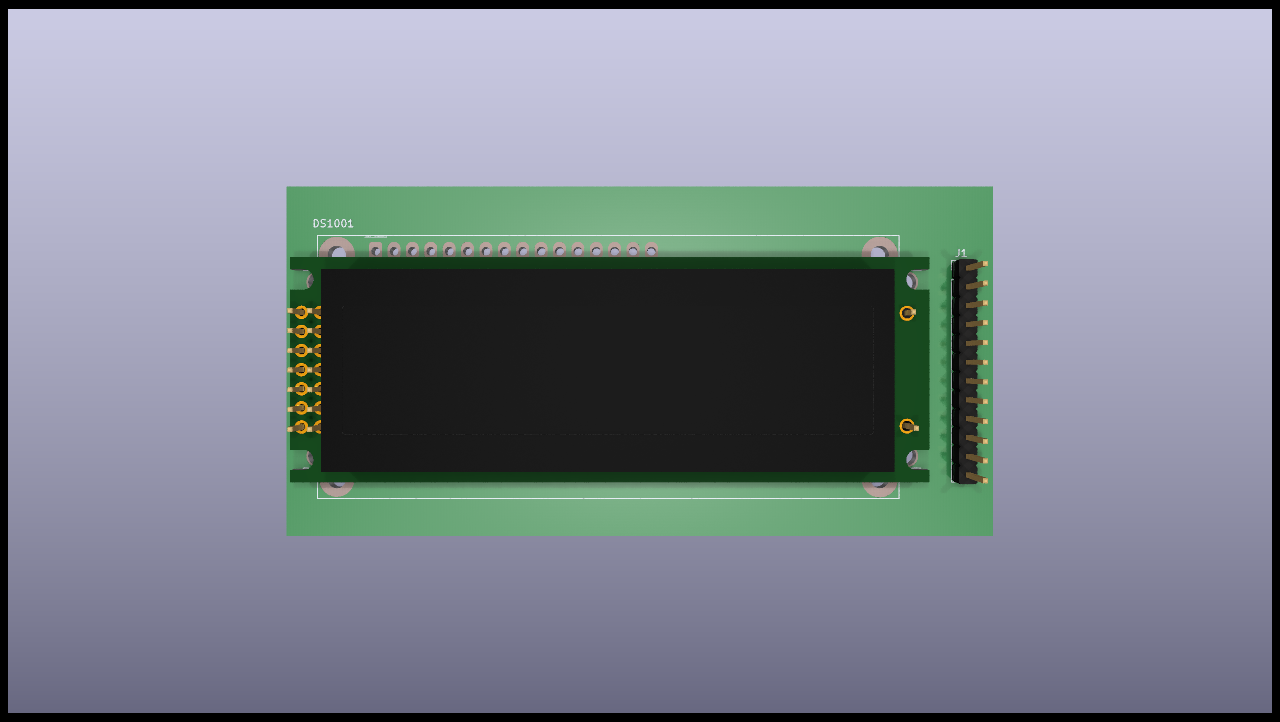
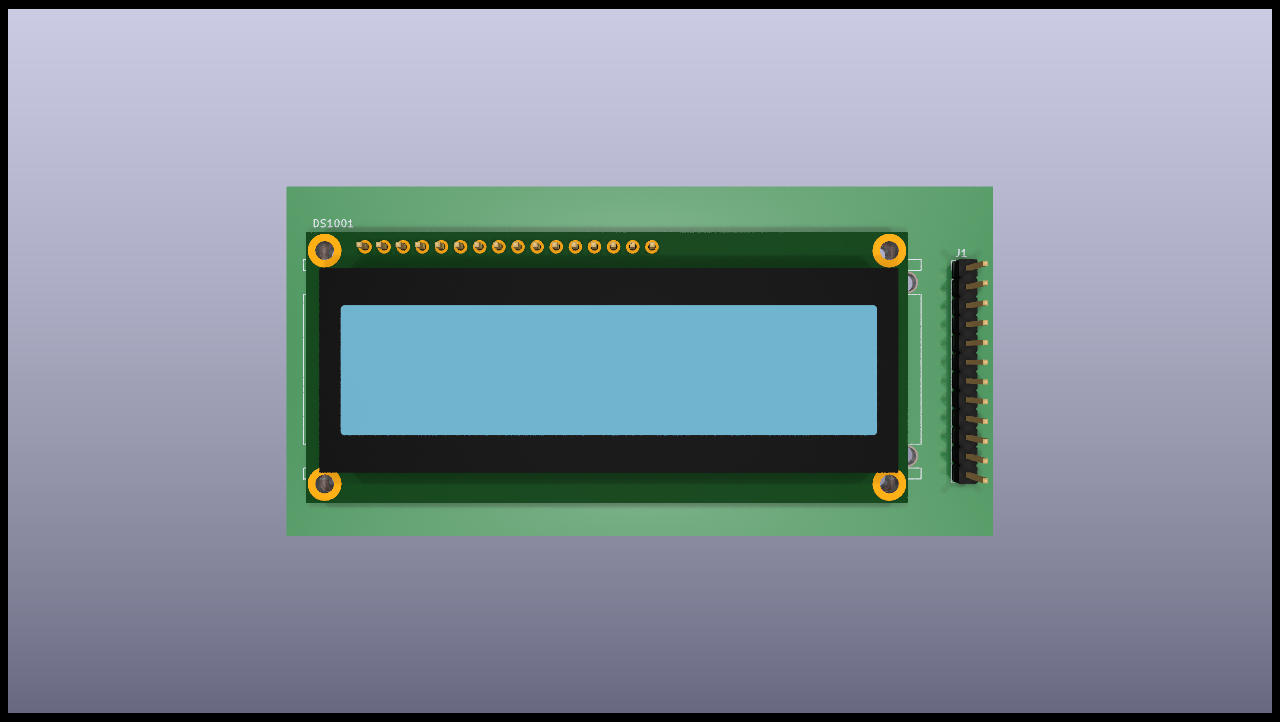
If you preffer to use the variant specific matching mechanism you can use the following syntax:
$TEXT_TO_MATCH:SLOT1,SLOT2,SLOTN$In this case the variant will be applied to the TEXT_TO_MATCH, if it matches (equivalent to a component fitted) the SLOT will be used.
Some important notes:
default variant.
This is what the above example does. In this case the default variant shows all the connectors, but no display.
Note that changing the 3D model needs the variants infrastructure.%_default_:SLOTS%.
This will be used if none %VARIANT_NAME:SLOT%` matched._Disabled_by_KiBot to the 3D model path.
This could be needed if you want to remove some model and you don't want to adjust the slot numbers.VARIANT_NAME and we
avoid relying on any variant specific mechanism. But you can use the alternative syntax if you preffer the variant
specific matching system.The current list of DNF keys is:
The current list of DNC keys is:
You can define your own lists as the int_bom_fil_1.kibot.yaml shows.
In this section you put all the things that you want to generate. This section contains one or more outputs. Each output contain the following data:
name a name so you can easily identify it.comment a short description of this output.type selects which type of output will be generated.
Examples are gerbers, drill files and pick & place filesdir is the directory where this output will be stored.extends used to use another output's options as base.run_by_default indicates this output will be created when no specific outputs are requested.disable_run_by_default can be used to disable the run_by_default status of other output.output_id text to use for the %I expansion content.options contains one or more options to configure this output.layers a list of layers used for this output. Not all outputs needs this subsection.Important note about the layers: In the original kiplot (from John Beard) the name of the inner layers was Inner.N where N is the number of the layer, i.e. Inner.1 is the first inner layer. This format is supported for compatibility. Note that this generated a lot of confusion because the default KiCad name for the first inner layer is In1.Cu. People filled issues and submitted pull-requests to fix it, thinking that inner layers weren't supported. Currently KiCad allows renaming these layers, so this version of kiplot supports the name used in KiCad. Just use the same name you see in the user interface.
The available values for type are:
gerber the gerbers for fabrication.ps postscript plothpgl format for laser printerssvg scalable vector graphicspdf portable document formatdxf mechanical CAD formatexcellon data for the drilling machinegerb_drill drilling positions in a gerber fileposition of the components for the pick & place machinepdf_sch_print schematic in PDF formatsvg_sch_print schematic in SVG formatps_sch_print schematic in PS formatdxf_sch_print schematic in DXF formathpgl_sch_print schematic in HPGL formatpdf_pcb_print PDF file containing one or more layer and the page framesvg_pcb_print SVG file containing one or more layer and the page framepcb_print PDF/SVG/PNG/EPS/PS, similar to pdf_pcb_print and svg_pcb_print, with more flexibilityreport generates a report about the PDF. Can include images from the above outputs.diff creates PDF files showing schematic or PCB changes.bom The internal BoM generator.kibom BoM in HTML or CSV format generated by KiBoMibom Interactive HTML BoM generated by InteractiveHtmlBomkicost BoM in XLSX format with costs generated by KiCoststep Standard for the Exchange of Product Data for the PCBvrml Virtual Reality Modeling Language for the PCBrender_3d PCB render, from the KiCad's 3D Viewerblender_export PCB export to Blender and high quality 3D render.
Including export to: fbx (Kaydara's Filmbox), 'obj' (Wavefront), 'x3d' (ISO/IEC standard),
gltf (GL format), stl (3D printing) and 'ply' (Stanford).populate To create step-by-step assembly instructions.kikit_present To create a project presentation web page.navigate_results generates web pages to navigate the generated outputs.panelize creates a PCB panel containing N copies of the PCB.stencil_3d creates a 3D self-registering printable stencil.stencil_for_jig creates steel stencils and 3D register.boardview creates a file useful to repair the board, but without disclosing the full layout.gencad exports the PCB in GENCAD format.compress creates an archive containing generated data.download_datasheets downloads the datasheets for all the components.pcbdraw nice images of the PCB in customized colors.pdfunite joins various PDF files into one.qr_lib generates symbol and footprints for QR codes.sch_variant the schematic after applying all filters and variants, including crossed components.pcb_variant the PCB after applying all filters and variants, including modified 3D models.copy_files used to copy generated files and source material.info creates a report about the tools used during the KiBot run.netlist generates the list of connections for the project (classic and IPC-D-356 formats).Here is an example of a configuration file to generate the gerbers for the top and bottom layers:
kibot:
  version: 1

preflight:
  run_drc: true

outputs:

  - name: 'gerbers'
    comment: "Gerbers for the board house"
    type: gerber
    dir: gerberdir
    options:
      # generic layer options
      exclude_edge_layer: false
      exclude_pads_from_silkscreen: false
      plot_sheet_reference: false
      plot_footprint_refs: true
      plot_footprint_values: true
      force_plot_invisible_refs_vals: false
      tent_vias: true
      line_width: 0.15

# gerber optionsMost options are the same you'll find in the KiCad dialogs.
Outputs are generated in the order they are declared in the YAML file.
To create them in an arbitrary order use the --cli-order command line option and they will be created in the order specified in the command line.
You have various ways to specify the layers. If you need to specify just one layer you can just use its name:
layers: 'F.Cu'If you want to specify all the available layers:
layers: 'all'You can also select the layers you want in KiCad (using File, Plot dialog) and save your PCB. Then you just need to use:
layers: 'selected'You can also use any of the following grup of layers:
You can also mix the above definitions using a list:
    layers:
      - 'copper'
      - 'Dwgs.User'
This will select all the copper layers and the user drawings. Note that the above mentioned options will use file name suffixes and descriptions selected automatically. If you want to use a particular suffix and provide better descriptions you can use the following format:
    layers:
      - layer: 'F.Cu'
        suffix: 'F_Cu'
        description: 'Front copper'
      - layer: 'B.Cu'
        suffix: 'B_Cu'
        description: 'Bottom copper'
You can also mix the styles:
    layers:
      - 'copper'
      - layer: 'Cmts.User'
        suffix: 'Cmts_User'
        description: 'User comments'
      - 'Dwgs.User'
If you need to use the same list of layers for various outputs you can use YAML anchors. The first time you define the list of layers just assign an anchor, here is an example:
    layers: &copper_and_cmts
      - copper
      - 'Cmts.User'
Next time you need this list just use an alias, like this:
layers: *copper_and_cmtsNotes:
Blender Export Experimental
blender_exportcomment: [string=''] A comment for documentation purposes. It helps to identify the output.dir: [string='./'] Output directory for the generated files.
If it starts with + the rest is concatenated to the default dir.name: [string=''] Used to identify this particular output definition.
Avoid using _ as first character. These names are reserved for KiBot.options: [dict] Options for the blender_export output.
pcb3d: [string|dict] Options to export the PCB to Blender.
You can also specify the name of the output that generates the PCB3D file.
See the PCB2Blender_2_1 and PCB2Blender_2_1_haschtl templates.
download: [boolean=true] Downloads missing 3D models from KiCad git.
Only applies to models in KISYS3DMOD and KICAD6_3DMODEL_DIR.
They are downloaded to a temporal directory and discarded.
If you want to cache the downloaded files specify a directory using the
KIBOT_3D_MODELS environment variable.no_virtual: [boolean=false] Used to exclude 3D models for components with 'virtual' attribute.show_components: [list(string)|string=all] [none,all] List of components to draw, can be also a string for none or all.
Unlike the pcbdraw output, the default is all.dnf_filter: [string|list(string)='_none'] Name of the filter to mark components as not fitted.
A short-cut to use for simple cases where a variant is an overkill.highlight: [list(string)=[]] List of components to highlight.highlight_on_top: [boolean=false] Highlight over the component (not under).highlight_padding: [number=1.5] [0,1000] How much the highlight extends around the component [mm].kicad_3d_url: [string='https://gitlab.com/kicad/libraries/kicad-packages3D/-/raw/master/'] Base URL for the KiCad 3D models.output: [string='%f-%i%I%v.%x'] Name for the generated PCB3D file (%i='blender_export' %x='pcb3d'). Affected by global options.pre_transform: [string|list(string)='_none'] Name of the filter to transform fields before applying other filters.
A short-cut to use for simple cases where a variant is an overkill.solder_paste_for_populated: [boolean=true] Add solder paste only for the populated components.
Populated components are the ones listed in show_components.variant: [string=''] Board variant to apply.version: [string='2.1'] [2.1,2.1_haschtl] Variant of the format used.point_of_view: [dict|list(dict)] How the object is viewed by the camera.
view: [string='top'] [top,bottom,front,rear,right,left,z,Z,y,Y,x,X] Point of view.
Compatible with render_3d.file_id: [string=''] String to diferentiate the name of this view.
When empty we use the view.rotate_x: [number=0] Angle to rotate the board in the X axis, positive is clockwise [degrees].rotate_y: [number=0] Angle to rotate the board in the Y axis, positive is clockwise [degrees].rotate_z: [number=0] Angle to rotate the board in the Z axis, positive is clockwise [degrees].render_options: [dict] Controls how the render is done for the render output type.
samples: [number=10] How many samples we create. Each sample is a raytracing render.
Use 1 for a raw preview, 10 for a draft and 100 or more for the final render.transparent_background: [boolean=false] Make the background transparent.auto_crop: [boolean=false] When enabled the image will be post-processed to remove the empty space around the image.
In this mode the background2 is changed to be the same as background1.background1: [string='#66667F'] First color for the background gradient.background2: [string='#CCCCE5'] Second color for the background gradient.resolution_x: [number=1280] Width of the image.resolution_y: [number=720] Height of the image.add_default_light: [boolean=true] Add a default light when none specified.
The default light is located at (-size3.33, size3.33, size*5) where size is max(width, height) of the PCB.camera: [dict] Options for the camera.
If none specified KiBot will create a suitable camera.
If no position is specified for the camera KiBot will look for a suitable position.
name: [string=''] Name for the light.pos_x: [number|string] X position [m]. You can use width, height and size for PCB dimensions.pos_y: [number|string] Y position [m]. You can use width, height and size for PCB dimensions.pos_z: [number|string] Z position [m]. You can use width, height and size for PCB dimensions.type: [string='perspective'] [perspective,orthographic,panoramic] Type of camera.light: [dict|list(dict)] Options for the light/s.
name: [string=''] Name for the light.pos_x: [number|string] X position [m]. You can use width, height and size for PCB dimensions.pos_y: [number|string] Y position [m]. You can use width, height and size for PCB dimensions.pos_z: [number|string] Z position [m]. You can use width, height and size for PCB dimensions.outputs: [dict|list(dict)] Outputs to generate in the same run.
type: [string='render'] [fbx,obj,x3d,gltf,stl,ply,blender,render] The format for the output.
The render type will generate a PNG image of the render result.
fbx is Kaydara's Filmbox, 'obj' is the Wavefront, 'x3d' is the new ISO/IEC standard
that replaced VRML, gltf is the standardized GL format, stl is the 3D printing
format, 'ply' is Polygon File Format (Stanford).
Note that some formats includes the light and camera and others are just the 3D model
(i.e. STL and PLY).output: [string='%f-%i%I%v.%x'] Name for the generated file (%i='3D_blender_$VIEW' %x=VARIABLE).
The extension is selected from the type. Affected by global options.pcb_import: Options to configure how Blender imports the PCB.
The default values are good for most cases.
center: [boolean=true] Center the PCB at the coordinates origin.components: [boolean=true] Import the components.cut_boards: [boolean=true] Separate the sub-PCBs in separated 3D models.enhance_materials: [boolean=true] Create good looking materials.merge_materials: [boolean=true] Reuse materials.solder_joints: [string='SMART'] [NONE,SMART,ALL] The plug-in can add nice looking solder joints.
This option controls if we add it for none, all or only for THT/SMD pads with solder paste.stack_boards: [boolean=true] Move the sub-PCBs to their relative position.texture_dpi: [number=1016.0] [508-2032] Texture density in dots per inch.category: [string|list(string)=''] The category for this output. If not specified an internally defined category is used.
Categories looks like file system paths, i.e. PCB/fabrication/gerber.
The categories are currently used for navigate_results.disable_run_by_default: [string|boolean] Use it to disable the run_by_default status of other output.
Useful when this output extends another and you don't want to generate the original.
Use the boolean true value to disable the output you are extending.extends: [string=''] Copy the options section from the indicated output.
Used to inherit options from another output of the same type.output_id: [string=''] Text to use for the %I expansion content. To differentiate variations of this output.priority: [number=50] [0,100] Priority for this output. High priority outputs are created first.
Internally we use 10 for low priority, 90 for high priority and 50 for most outputs.run_by_default: [boolean=true] When enabled this output will be created when no specific outputs are requested.BoardView
boardviewcomment: [string=''] A comment for documentation purposes. It helps to identify the output.dir: [string='./'] Output directory for the generated files.
If it starts with + the rest is concatenated to the default dir.name: [string=''] Used to identify this particular output definition.
Avoid using _ as first character. These names are reserved for KiBot.options: [dict] Options for the boardview output.
output: [string='%f-%i%I%v.%x'] Filename for the output (%i=boardview, %x=brd). Affected by global options.dnf_filter: [string|list(string)='_none'] Name of the filter to mark components as not fitted.
A short-cut to use for simple cases where a variant is an overkill.pre_transform: [string|list(string)='_none'] Name of the filter to transform fields before applying other filters.
A short-cut to use for simple cases where a variant is an overkill.variant: [string=''] Board variant to apply.
Used for sub-PCBs.category: [string|list(string)=''] The category for this output. If not specified an internally defined category is used.
Categories looks like file system paths, i.e. PCB/fabrication/gerber.
The categories are currently used for navigate_results.disable_run_by_default: [string|boolean] Use it to disable the run_by_default status of other output.
Useful when this output extends another and you don't want to generate the original.
Use the boolean true value to disable the output you are extending.extends: [string=''] Copy the options section from the indicated output.
Used to inherit options from another output of the same type.output_id: [string=''] Text to use for the %I expansion content. To differentiate variations of this output.priority: [number=50] [0,100] Priority for this output. High priority outputs are created first.
Internally we use 10 for low priority, 90 for high priority and 50 for most outputs.run_by_default: [boolean=true] When enabled this output will be created when no specific outputs are requested.BoM (Bill of Materials)
bomoptions section, not in conf subsection.
- The Component column is named Row and works just like any other column.
This output is what you get from the 'Tools/Generate Bill of Materials' menu in eeschema.comment: [string=''] A comment for documentation purposes. It helps to identify the output.dir: [string='./'] Output directory for the generated files.
If it starts with + the rest is concatenated to the default dir.name: [string=''] Used to identify this particular output definition.
Avoid using _ as first character. These names are reserved for KiBot.options: [dict] Options for the bom output.
columns: [list(dict)|list(string)] List of columns to display.
Can be just the name of the field.
field: [string=''] Name of the field to use for this column.
Use _field_lcsc_part to get the value defined in the global options.name: [string=''] Name to display in the header. The field is used when empty.comment: [string=''] Used as explanation for this column. The XLSX output uses it.join: [list(dict)|list(string)|string=''] List of fields to join to this column.
field: [string=''] Name of the field.text: [string=''] Text to use instead of a field. This option is incompatible with the field option.
Any space to separate it should be added in the text.
Use \n for newline and \t for tab.text_after: [string=''] Text to add after the field content. Will be added only if the field isn't empty.
Any space to separate it should be added in the text.
Use \n for newline and \t for tab.text_before: [string=''] Text to add before the field content. Will be added only if the field isn't empty.
Any space to separate it should be added in the text.
Use \n for newline and \t for tab.level: [number=0] Used to group columns. The XLSX output uses it to collapse columns.csv: [dict] Options for the CSV, TXT and TSV formats.
quote_all: [boolean=false] Enclose all values using double quotes.separator: [string=','] CSV Separator. TXT and TSV always use tab as delimiter.
Only one character can be specified.hide_header: [boolean=false] Hide the header line (names of the columns).hide_pcb_info: [boolean=false] Hide project information.hide_stats_info: [boolean=false] Hide statistics information.format: [string=''] [HTML,CSV,TXT,TSV,XML,XLSX,HRTXT] format for the BoM.
Defaults to CSV or a guess according to the options.
HRTXT stands for Human Readable TeXT.group_fields: [list(string)] List of fields used for sorting individual components into groups.
Components which match (comparing all fields) will be grouped together.
Field names are case-insensitive.
If empty: ['Part', 'Part Lib', 'Value', 'Footprint', 'Footprint Lib',
'Voltage', 'Tolerance', 'Current', 'Power'] is used.hrtxt: [dict] Options for the HRTXT formats.
separator: [string='I'] Column Separator.header_sep: [string='-'] Separator between the header and the data.hide_header: [boolean=false] Hide the header line (names of the columns).hide_pcb_info: [boolean=false] Hide project information.hide_stats_info: [boolean=false] Hide statistics information.justify: [string='left'] [left,right,center] Text justification.html: [dict] Options for the HTML format.
datasheet_as_link: [string=''] Column with links to the datasheet.generate_dnf: [boolean=true] Generate a separated section for DNF (Do Not Fit) components.logo: [string|boolean=''] PNG file to use as logo, use false to remove.title: [string='KiBot Bill of Materials'] BoM title.col_colors: [boolean=true] Use colors to show the field type.digikey_link: [string|list(string)=''] Column/s containing Digi-Key part numbers, will be linked to web page.extra_info: [string|list(string)=''] Information to put after the title and before the pcb and stats info.hide_pcb_info: [boolean=false] Hide project information.hide_stats_info: [boolean=false] Hide statistics information.highlight_empty: [boolean=true] Use a color for empty cells. Applies only when col_colors is true.mouser_link: [string|list(string)=''] Column/s containing Mouser part numbers, will be linked to web page.style: [string='modern-blue'] Page style. Internal styles: modern-blue, modern-green, modern-red and classic.
Or you can provide a CSS file name. Please use .css as file extension..ignore_dnf: [boolean=true] Exclude DNF (Do Not Fit) components.normalize_values: [boolean=false] Try to normalize the R, L and C values, producing uniform units and prefixes.number: [number=1] Number of boards to build (components multiplier).output: [string='%f-%i%I%v.%x'] filename for the output (%i=bom). Affected by global options.sort_style: [string='type_value'] [type_value,type_value_ref,ref] Sorting criteria.units: [string='millimeters'] [millimeters,inches,mils] Units used for the positions ('Footprint X' and 'Footprint Y' columns).
Affected by global options.xlsx: [dict] Options for the XLSX format.
datasheet_as_link: [string=''] Column with links to the datasheet.generate_dnf: [boolean=true] Generate a separated section for DNF (Do Not Fit) components.kicost: [boolean=false] Enable KiCost worksheet creation.
Note: an example of how to use it on CI/CD can be found here.logo: [string|boolean=''] PNG file to use as logo, use false to remove.specs: [boolean=false] Enable Specs worksheet creation. Contains specifications for the components.
Works with only some KiCost APIs.title: [string='KiBot Bill of Materials'] BoM title.col_colors: [boolean=true] Use colors to show the field type.digikey_link: [string|list(string)=''] Column/s containing Digi-Key part numbers, will be linked to web page.extra_info: [string|list(string)=''] Information to put after the title and before the pcb and stats info.hide_pcb_info: [boolean=false] Hide project information.hide_stats_info: [boolean=false] Hide statistics information.highlight_empty: [boolean=true] Use a color for empty cells. Applies only when col_colors is true.kicost_api_disable: [string|list(string)=''] List of KiCost APIs to disable.kicost_api_enable: [string|list(string)=''] List of KiCost APIs to enable.kicost_config: [string=''] KiCost configuration file. It contains the keys for the different distributors APIs.
The regular KiCost config is used when empty.
Important for CI/CD environments: avoid exposing your API secrets!
To understand how to achieve this, and als| Qty | Value | Footprint | References |
|---|---|---|---|
| 1 | **Val | kibom-variant_4:LCD_16x02_Dual | DS1001 |
| 1 | Conn_01x12_Female | Connector_PinHeader_2.54mm:PinHeader_1x12_P2.54mm_Vertical | J1 |


hzeller/rpi-rgb-led-matrix
Controlling up to three chains of 64x64, 32x32, 16x32 or similar RGB LED displays using Raspberry Pi GPIO


adamws/kicad-kbplacer
KiCad plugin for automatic keyboard's key placement and routing

Luos-io/luos_engine
Open-source and real-time orchestrator for cyber-physical-systems, to easily design, test and deploy embedded applications and digital twins.

NVNTLabs/switch2-SDEX2M2
Micro SD Express to M.2 NVME Adapter for Nintendo Switch 2

BlueSCSI/BlueSCSI-v2
BlueSCSI v2/Ultra - an open source, open hardware, SCSI emulator using the Pi Pico PR2040 and Pico 2 RP2350

ohmtech-rdi/eurorack-blocks
Software to Hardware Prototyping for Eurorack using C++, Max/Gen~ or Faust

It measures 97.6 × 48.3 mm and has 2 copper layers, 1.6 mm thick.
2 parts. The full list of its parts is on this page, with links to each part's symbol and footprint where PCBKit's library has them.
From the apcountryman/KiBot repository on GitHub, at the commit this page was made from: the board is docs/samples/3D_Model_LCD/lcd.kicad_pcb. PCBKit opens the board in the browser, with nothing to install.
Its repository publishes it under the AGPL-3.0 licence: you may reuse it on that licence's terms (keep the author's notice, and for a copyleft licence share your changes alike).