2 layers
Ki Test
AdrianWest/Bakery
If Bakery has helped you in any way please consider buying me a coffee
31 parts15GPL-3.0

 AdrianWest/Bakery15
If Bakery has helped you in any way please consider buying me a coffee
Ki Test is an open-source printed circuit board by AdrianWest, from the AdrianWest/Bakery repository on GitHub, published under the GPL-3.0 licence. It is a 2-layer board with 32 parts on 15 nets.
Its parts include 18 diodes, 9 resistors, 3 capacitors and 1 connector.
If Bakery has helped you in any way please consider buying me a coffee

|

|
Localize all KiCad symbols, footprints, 3D models, and datasheets to project libraries - They get Baked into your project
Why?
.kicad_sch and .kicad_pcb files extensively<project>-backups/<project>-YYYY-MM-DD_HHMMSS.zipRecommended: put your project under Git before running Bakery:
cd /path/to/your/project
git init
git add .
git commit -m "Before Bakery localization"Bakery is a KiCad plugin that automates the process of copying global library symbols, footprints, 3D models, and datasheets into project-local libraries. The plugin "bakes in" all external dependencies, converting references from global libraries to local project files. This ensures:
Bakery-x.x.x.zip fileDownload or clone this repository
Copy the plugins folder contents to your KiCad plugins directory:
%USERPROFILE%\Documents\KiCad\10.0\scripting\plugins\Bakery\~/.kicad/10.0/scripting/plugins/Bakery/~/.var/app/org.kicad.KiCad/data/kicad/10.0/scripting/plugins/Bakery/~/Library/Preferences/kicad/10.0/scripting/plugins/Bakery/Note (Flatpak): KiCad installed via Flatpak runs in a sandbox and does not see
~/.kicad/.... Copy the plugin into the sandboxed data directory shown above, or KiCad will not detect it. After copying, fully quit KiCad (not just close the window) before relaunching so it rescans the plugins folder.
Restart KiCad
Note: Bakery currently supports KiCad 10.x only. If you are still on KiCad 9.x (including Flatpak builds), use the last 9.x-compatible release, v1.1.0, instead of the current release.
 icon in the
top toolbar, or select Tools > External Plugins >
Bakery - Localize Symbols, Footprints, and 3d Models.
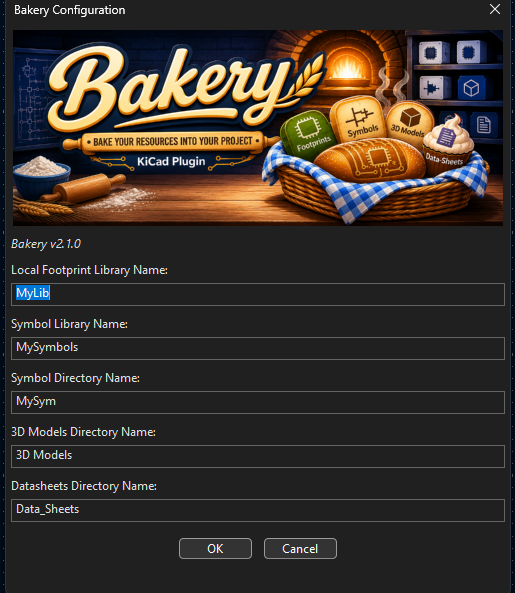
These names control the project-local libraries and folders Bakery creates. The defaults are safe for most projects; change them only if you want different names in your KiCad project folder.
| Field | What to enter | What Bakery creates or updates |
|---|---|---|
| Local Footprint Library Name | A KiCad library nickname, such as MyLib | A local footprint library folder named MyLib.pretty and an fp-lib-table entry for it |
| Symbol Library Name | A KiCad symbol library nickname, such as MySymbols | A local symbol library file named MySymbols.kicad_sym and a sym-lib-table entry for it |
| Symbol Directory Name | A folder name, such as MySym or Symbols | The folder that stores the local symbol library file |
| 3D Models Directory Name | A folder name, such as 3D Models | The folder that stores copied STEP/WRL model files |
| Datasheets Directory Name | A folder name, such as Data_Sheets | The folder that stores downloaded or copied PDF datasheets |
| Place all library folders inside one folder | Check to group the output folders | Places the footprint, symbol, 3D model, and datasheet folders inside a single folder in the project |
| Parent Folder Name | A folder name (default: Project_Lib); shown when grouping is checked | The parent folder containing all the library folders |
Click OK to start localization, Cancel to exit without changes, or Help to open the Bakery GitHub repository.
Bakery will:
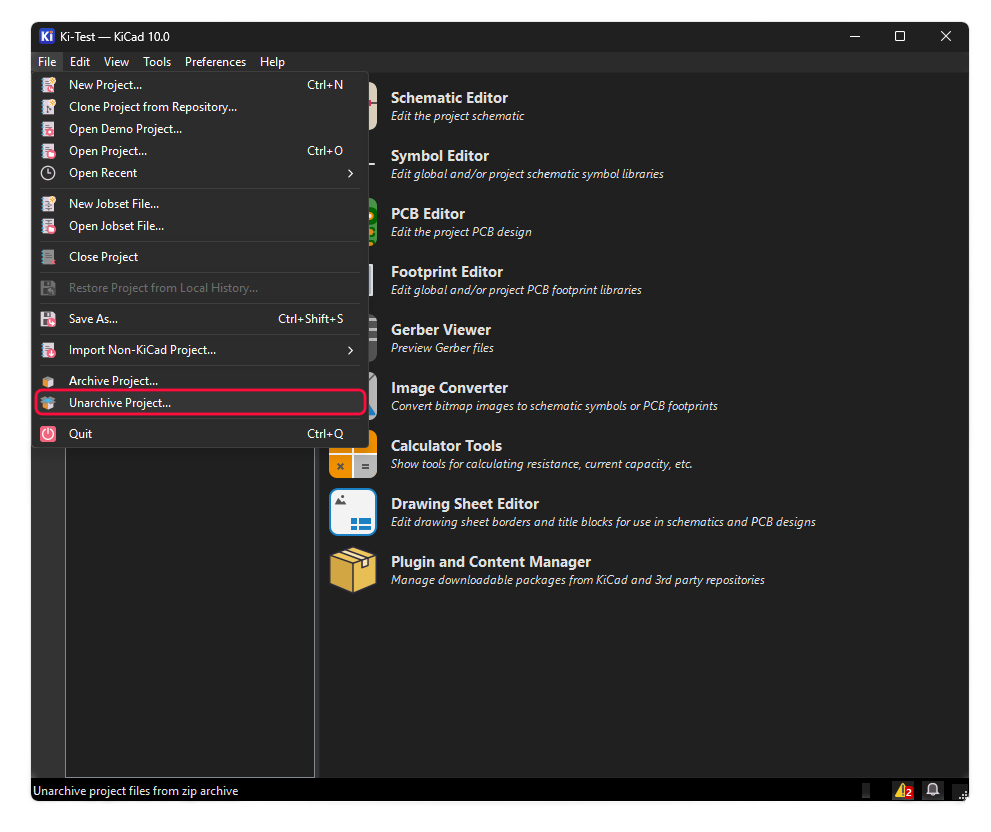
<project>-backups/<project>-YYYY-MM-DD_HHMMSS.zip.pretty folders for footprints.kicad_sym) in Symbols directory3D Models folder for 3D modelsData_Sheets folder for datasheetsfp-lib-table and sym-lib-table to include local librariesBakery backups are standard KiCad ZIP project archives. Restore a previous design at any time with KiCad's built-in Unarchive Project command:
<project>-backups folder..kicad_pro file and verify the schematic and PCB.For details, see the official KiCad documentation: Project archive and unarchive.
YourProject/
├── YourProject.kicad_pro
├── YourProject.kicad_pcb
├── YourProject.kicad_sch
├── YourProject-backups/      # Timestamped pre-localization project archives
│   └── YourProject-YYYY-MM-DD_HHMMSS.zip
├── fp-lib-table              # Updated with local footprint library
├── sym-lib-table             # Updated with local symbol library
├── MyLib.pretty/             # Local footprint library
│   ├── Footprint1.kicad_mod
│   └── Footprint2.kicad_mod
├── Symbols/                  # Local symbol libraries
│   └── MySymbols.kicad_sym  # Local symbol library
├── 3D Models/                # Local 3D models
│   ├── model1.step
│   └── model2.wrl
└── Data_Sheets/              # Local datasheets
    ├── component1.pdf
└── component2.pdfSee .github/copilot-instructions.md for development guidelines and architecture details.
Bakery/
├── __init__.py                 # Plugin registration and metadata
├── bakery_plugin.py            # Main plugin class (ActionPlugin interface)
├── constants.py                # Configuration constants and messages
├── ui_components.py            # Logger window and configuration dialog
├── footprint_localizer.py      # Footprint and 3D model localization
├── symbol_localizer.py         # Symbol localization
├── data_sheet_localizer.py     # Datasheet localization (download/copy/update)
├── library_manager.py          # Footprint library table management
├── sexpr_parser.py             # S-expression parser
├── utils.py                    # Shared utility functions
└── metadata.json # Plugin metadata for KiCad Plugin Manager✅ Symbol Localization: Automatically copies all symbols from global libraries to your project
✅ Footprint Localization: Automatically copies all footprints from global libraries to your project
✅ 3D Model Localization: Copies associated 3D models and updates paths
✅ Datasheet Localization: Downloads datasheets from internet URLs or copies local PDF files to your project; updates all references to use portable ${KIPRJMOD} paths
✅ Automatic Reference Updates: Updates PCB, schematics, and library tables
✅ Dual Scanning: Scans both PCB and schematic files for complete coverage
✅ Automatic Project Backup: Creates a KiCad-compatible timestamped ZIP before changing project files
✅ Progress Tracking: Visual progress bar with step-by-step status
✅ Detailed Logging: Separate panes for info, warnings, and errors
✅ Configurable: Choose local library and directory names
✅ Path Safety: Validates all file operations to prevent data loss
✅ KiCad 10 Support: Built for KiCad version 10
When you run Bakery, you can configure:
<project>-backupsGNU General Public License v3.0 - see LICENSE file
Contributions welcome! Please open an issue or pull request.
Please note that this project is released with a Code of Conduct. By participating in this project you agree to abide by its terms.
Project_Lib)${KIPRJMOD} 3D model pathsThe unit suite uses Python's built-in unittest framework and mocks the
KiCad APIs where necessary. From the repository root:
python "Unit Test\run_tests.py"             # Run all unit tests
python "Unit Test\run_tests.py" --verbose   # Show each test name
python "Unit Test\run_tests.py" --list      # List discovered test modules
python "Unit Test\run_tests.py" --coverage  # Write terminal and HTML coverage reports
--coverage requires the optional coverage package:
python -m pip install coverageThe suite covers the plugin entry point, localization modules, backup and configuration handling, utilities, library management, and S-expression parsing. See Unit Test/README.md for test-specific details.
The functional suite drives a real KiCad 10 installation through its UI. It restores all four fixture projects, installs the plugin, runs Bakery, checks the localized project files, verifies a second run makes no unintended changes, and reopens the localized PCB and root schematic in KiCad.
Requirements
pywinauto, pywin32, and psutilpcbnew.exe or Bakery plugin processInstall the Python test dependencies once:
python -m pip install pywinauto pywin32 psutilFrom the repository root, run the complete suite or selected fixtures:
# Run FT-01 through FT-04
python "Functional Test\functional_suite\run_functional_tests.py"

# Run only selected fixtures while iterating
python "Functional Test\functional_suite\run_functional_tests.py" --fixtures FT-01,FT-03

# Run one localization pass only, without the second-run or PCB/schematic reopen checks
python "Functional Test\functional_suite\run_functional_tests.py" --skip-idempotence --skip-reopen
Test workspace files are created under C:\GIT_HUB\testing. Each run writes
junit.xml, summary.json, environment.json, and report.md to
C:\GIT_HUB\testing\results\<timestamp>\. Datasheet download failures and
the fixtures' deliberately missing references are asserted as expected
conditions; unexpected localization, PCB reopen, or schematic reopen failures
cause a nonzero exit code.
See Functional Test/functional_suite/README.md for the fixture matrix, assertions, expected issues, and report details.
| Qty | Value | Footprint | References |
|---|---|---|---|
| 18 | 1N4004 | Diode_THT:D_DO-41_SOD81_P10.16mm_Horizontal | D1, D2, D3, D4, D5, D6, D7, D10, D11, D12, D13, D14, D15, D16, D17, D18 +2 |
| 9 | 1K | Resistor_SMD:R_4020_10251Metric_Pad1.65x5.30mm_HandSolder | R1, R2, R3, R4, R5, R6, R7, R8, R9 |
| 3 | C_US | Capacitor_SMD:CP_Elec_18x17.5 | C1, C2, C3 |
| 1 | Conn_01x01 | Connector_Phoenix_MC:PhoenixContact_MCV_1,5_4-GF-3.81_1x04_P3.81mm_Vertical_ThreadedFlange_MountHole | J1 |
The 31 most common of 32 parts.
AdrianWest/Bakery
If Bakery has helped you in any way please consider buying me a coffee

AdrianWest/Bakery
If Bakery has helped you in any way please consider buying me a coffee

hoglet67/RGBtoHDMI
Bare-metal Raspberry Pi project that provides pixel-perfect sampling of Retro Computer RGB/YUV video and conversion to HDMI

hackclub/OnBoard
💡 Join 1,000 teenagers and make your first PCB with a $100 grant!


octosavvi/ESPKey
Wiegand data logger, replay device and micro door-controller

zmaker/arduino_cookbook
gli sketch del nuovo progetto Arduino Cookbook e dei video di YouTube

murexrobotics/electrical
Highly integrated electronics design and printed circuit boards (PCBs) for the MATE ROV Competition. Attempt the impossible.

swharden/AVR-projects
A collection of standalone AVR projects written in C

hardenedlinux/cheap-pcb
Cheap PCB: Better understanding the current status of hardware supply chain
32 parts. The full list of its parts is on this page, with links to each part's symbol and footprint where PCBKit's library has them.
From the AdrianWest/Bakery repository on GitHub, at the commit this page was made from: the board is Functional Test/Ki-Test 01-10 - Backup/Ki-Test.kicad_pcb and its schematic Functional Test/Ki-Test 01-09 - Backup/Diodes.kicad_sch. PCBKit opens the board in the browser, with nothing to install.
Its repository publishes it under the GPL-3.0 licence: you may reuse it on that licence's terms (keep the author's notice, and for a copyleft licence share your changes alike).